Help:DMS-Selected Shipments Selections
This window is used to set the selection criteria for the Select Shipments Report.
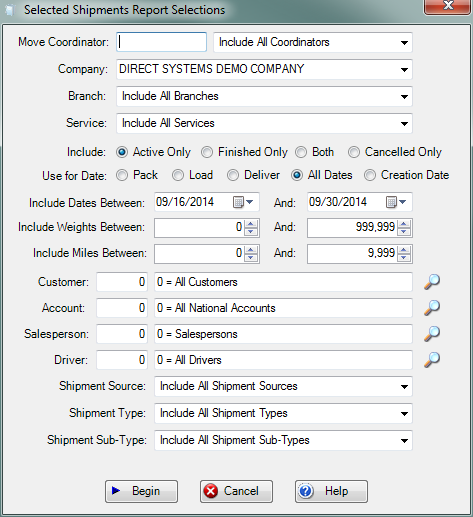
Move Coordinator: If you have permission 41 - Access Jobs for All Coordinators then this field will be blank. You can enter a specific UserID or just leave it blank for all Move Coordinators. You can use the View [?] button to the far right of this field for a list of all active User ID's.
If you do not have permission 41, this field will be pre-set with the UserID of the person logged in and access to active jobs will be limited to this particular User ID.
Company: Use this drop-box to select the specific company whose jobs you wish to see. If you do not have permission 1 - Access All Companies, then this field will be limited to the current logged in company.
Branch: Use this drop-box to select the specific Branch of the company selected in the previous field. If all companies were selected, then this Branch field is unnecessary.
Service: Use this drop-box to select the specific service you wish go include on the display. Select All Services to display all of the services.
[X] Include: Press the Radio Button for those shipments you wish to include in this report. Select Active for active shipments only, Finished for historical shipments only, Both for both Finished and Active, and Cancelled for cancelled only.
[X] Use for Date: Press the Radio Button of the date selection criteria you wish to use. The Date Spread fields will use the date selected here.
Including Dates Between: Enter or select the date spread to filter on. The Load date must be between the specified dates.
Include Weights Between/And: If you wish to narrow down the results within a specific weight range, then enter that information here.
Include Miles Between/And: If you wish to narrow down the results within a certain mileage, then enter that information here.
Customer: If you wish to limit the listing to a single Billing Customer then enter that Customer in this field. If you wish to include all Billing Customers, then enter a "0" (zero) in this field . Press the View button [?] to see the available Customers. The Name of the Customer will be displayed to the right of this field.
Account: If you wish to limit the listing to a single Account then enter that Account here. If you wish to include all Accounts, then enter a "0" (zero) in this field . Press the View button [?] to see the available Accounts. The Name of the Account will be displayed to the right of this field.
Salesperson: If you wish to limit the listing to a single Salesperson then enter that Salesperson here. If you wish to include all Salespersons, then enter a "0" (zero) in this field . Press the View button [?] to see the available Salespersons. The Name of the Salesperson will be displayed to the right of this field.
Driver: If you wish to limit the listing to a single Driver then enter that Driver in this field. If you wish to include all Drivers, then enter a "0" (zero) in this field . Press the View button [?] to see the available Drivers. The Name of the Driver will be displayed to the right of this field.
Shipment Source: If you wish to limit the listing to a single Shipment Source then enter that Shipment Source in this field. If you wish to include all Shipment Sources, then leave this field blank. Press the View button [?] to see the available Shipment Sources. The description of the Shipment Source will be displayed to the right of this field.
Shipment Type: If you wish to limit the listing to a single Shipment Type then enter that Shipment Type in this field. If you wish to include all Shipment Types, then leave this field blank. Press the View button [?] to see the available Shipment Types. The description of the Shipment Type will be displayed to the right of this field.
Shipment Sub-Type: If you wish to limit the listing to a single Shipment Sub-Type then enter that Shipment Sub-Type here. If you wish to include all Shipment Sub-Types, then leave this field blank. Press the View button [?] to see the available Shipment Sub-Types. The description of the Shipment Sub-Sub-Type will be displayed to the right of this field.
File:BeginButton.PNG Press this button to Display the Selected Shipments which match the selections made on this screen.
File:CancelButton.PNG Press this button to ignore any selections made on this screen and return to the previous screen.
File:HelpButton.PNG Press this button to call the Help Screen.


