Help:DMS-Clone Job
This screen enables you to clone a Job.
All of the fields in the Clone Master are cloned. The only sections not cloned are the SIT information, Notes, Work Tickets and Invoices.
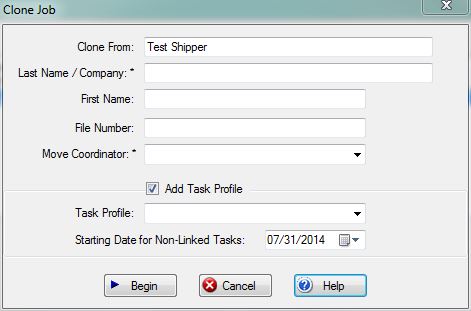
Clone From: This field displays the name of the Clone Master which you are going to use for this cloning operation.
Company/Last Name: Enter the full company name if this job is being performed for a company or the shipper's last name if this job is being performed for an individual.
First Name: Enter the shipper's first name if this job is being performed for an individual and the Last Name was entered in the previous field. If this is a company, then leave this field blank since no first name will apply. The program will automatically combine the first and last names where applicable.
File Number: The File Number is the number by which this shipment will be referenced in the Accounts Receivable. This number is usually assigned by an external source such as the Van Line or Military Base. This field is a 20-Character long Alpha-Numeric field. The shipment file is kept in sorted order by this File Number and this field can be used to rapidly locate any shipment. This field can also be auto-numbered. See File - Enterprise Files Utilities - Standard Settings.
Move Coordinator: Use this drop-box to select the Move Coordinator who will be responsible for this job. Only the Move Coordinators which have been set up for the Clone Master's company will be displayed in this box. See IBS Setup - Setup Functions - User Job Roles
[X] Add Task Profile Check this box if you wish to add a pre-set profile of Tasks to be performed on this Job. See File - Enterprise Files Utilities - Task Profile Maintenance
Task Profile: Use this drop-box to select the Task Profile to be attached to this Company Job.
Starting Date for Non-Linked Tasks: Enter the date to be used for all of the tasks which have no control date links specified.
File:BeginButton.PNG Press this button to begin the Cloning process. Once this button is pressed, you will not be able to cancel this procedure.
File:CancelButton.PNG Press this button to cancel this operation and return to the previous screen. This button must be pressed BEFORE the File:BeginButton.PNG button is pressed.
File:HelpButton.PNG Press this button to call the Help Screen.


