Help:DM1-Letter Editor
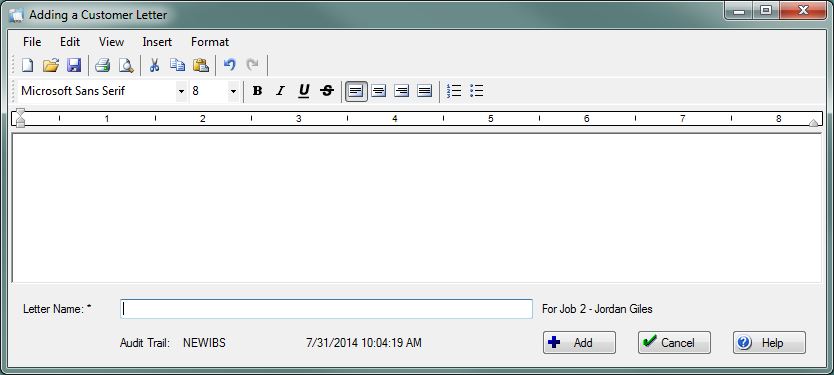
The Letter Editor is a standard Rich Text Editor that allows you to compose, maintain and print correspondence.
When adding or editing a Standard Letter, you have access to a list of Replacement Variables so you can "merge" Job-specific information:
New This menu option will clear the contents of the current Letter and give you a blank document to work with.
Open This menu option will open an existing Rich Text File (RTF) and display it. Please note: this will overwrite the contents of the current document.
Save This menu option will save the current document. It is functionally the same as pressing File:SaveButton.PNG
Save As This menu option allows you to save the current document as a Rich Text File (.RTF) on the file system. You will be prompted for a save location.
Print This menu option will send the current document to the printer.
Print Preview This menu option will open the current document in a standard Print Preview dialog box.
Page Settings This menu option allows you to set printer Page Settings like paper source, paper size, orientation and margins.
Undo This menu option will undo the last action performed in your document.
Redo This menu option will redo the last undone action in your document.
Cut Cut the current selection and move it to the clipboard.
Copy Copy the current selection to the clipboard.
Paste Paste the contents of the clipboard in the current document.
Find This menu option opens a simple Find dialog box to help you search the current document.
Ruler This menu option allows you to show/hide the Ruler.
Main toolbar This menu option allows you to show/hide the Main toolbar.
Formatting This menu option allows you to show/hide the Formatting toolbar.
Picture This menu option allows you to browse for an image file to insert into the current document.
Date/time This menu option allows you to select from a dropdown box of predefined date/time formats. You can also enter a custom date format.
Font This menu option opens a standard font-selection dialog box. The formatting will be applied at that cursor as well as to any selected text.
Text Color This menu option opens a standard color-selection dialog box where you can pick the foreground color of the text.
Highlight Color This menu option opens a standard color-selection dialog box where you can pick the background color of the text.
Underline Style This menu option allows you to specify an Underline style: Dash Dot Dot, Wave or Solid.
Main toolbar
The Main toolbar contains shortcuts to functionality found under the File and Edit menu.
Formatting toolbar
The Formatting toolbar contains common format options like: Font Family, Font Size, Bold, Italic, Underline, Strike-through, Right-Align, Center-Align, Right-Align, Numbered List and Bullet List
Ruler
The ruler is measured in inches and allows you to set the left/right margins and tabs for each line in the editor.
Letter Name: This i a required field, meaning that it cannot be blank. For Standard Letters, the Letter Name must be unique. You will be prompted if the name already exists in the database.
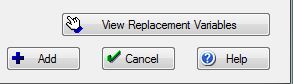
[View Replacement Variables] This button, only visible when editing Standard Letters, allows you to select from a list of replacement variables to insert into the current document.
File:AddButton.PNG or File:SaveButton.PNG Press this button to save the current document.
File:CancelButton.PNG Press this button to cancel any changes and return to the previous screen.
File:HelpButton.PNG Press this button to call the Help Screen.


