Help:DM1-MoverBiz Big Board: Difference between revisions
added frame |
added content |
||
| Line 4: | Line 4: | ||
[[File:DMS_Big_Board.JPG|link=]] | [[File:DMS_Big_Board.JPG|thumb|400px| Screenshot]] | ||
The MoverBiz Big Board allows you to view and manage Company Jobs with the ability to change Control Dates and Commission Agent Driver. There is a focus on Inter/Intrastate moves with the ability to narrow down the Service Types you can view. | |||
== Permissions == | |||
The Big Board uses the following permissions: | |||
{| class="wikitable" | |||
|- | |||
! scope="col"| Permission | |||
! scope="col"| Description | |||
|- | |||
| 1 | |||
| '''Access All Companies''' | |||
|- | |||
| 41 | |||
| '''Access Jobs for All Coordinators''' | |||
|} | |||
== Ribbon Tabs == | |||
The ribbon tabs are located at the top of the screen, directly above the Grid area. They have a peach tint and say "Big Board" in the very top of the window. Clicking on the top of the tab will activate it. | |||
=== Tools Tab === | |||
This report has the [[Help:Common-Default Report Tools|Default Report Tools]] as well as the following: | |||
'''[Export to CSV]''' Press this button to open the [[Help:DM1-Export_To_CSV|Export to CSV]] screen. | |||
[[File:DMS_Big_Board_Maintenance_Menu.jpg|link=]] | |||
'''[Selected Services]''' Press this menu item to edit the [[Help:DM1-Select_Services_for_the_Big_Board|Selected Services]] that are displayed on the Big Board. | |||
'''[Column View Maintenance]''' Press this menu item to open the [[Help:DM1-Column_View_Maintenance|Column View Maintenance]] screen. | |||
'''[User Default Settings]''' Press this menu item to open the [[Help:DM1-Big_Board_User_Default_Settings|Load Board User Default Settings]] screen. | |||
'''[Load User Default Settings]''' Press this button to reload your User Default Settings, resetting the entire screen. | |||
[[File:DMS_Big_Board_Options_menu.jpg|link=]] | |||
The option menu contain some Yes/No options that control how the Load Board looks: | |||
'''Filter Panel Expanded''' Check this option to expand/collapse the Filter panel. | |||
== Filter == | |||
The Filter allows you to narrow down your Work Tickets based on the specified criteria. Changing the Live Filter will apply the selected criteria immediately, or live. | |||
'''[x] Use Date Filter''' Check this box to use the Date section of the Filter. | |||
'''Date Link''' Use this drop-box to select the type of date link to filter on: Pack, Load, Deliver or CreatedOn. | |||
'''Date Type''' Use this drop-down to select the type of date: Assigned, Preferred, Begin Spread or End Spread. | |||
'''[x] Is Blank''' Check this box to return records where the selected date type is blank. | |||
'''Between/And:''' Enter or select the date spread to filter on. The selected date must be between the specified dates. | |||
'''Move Coordinator:''' If you have permission 41 - Access Jobs for All Coordinators then select the Move Coordinator from the drop-box. If you wish to include all Move Coordinators, then select <All Move Coordinators>. If you do not have permission 41, this field will be pre-set with the UserID of the person logged in. | |||
'''Company:''' If you wish to limit the listing to a single Company, then select the Company from the drop-box. If you wish to include all Companies, then select <All Companies>. If you do not have permission 1 - Access All Companies, then this field will be limited to the current logged in company. | |||
'''Branch:''' If you wish to limit the listing to a single Company Branch, then select the Branch from the drop-box. If you wish to include all Company Branches, then select <All Branches>. | |||
'''Service:''' If you wish to limit the listing to a single Service Type, then select the Service from the drop-box. If you wish to include all Service Types, then select <All Services>. This drop-box will be limited to the Selected Services. | |||
'''Driver:''' If you wish to limit the listing to a single Driver, then select the Driver from the drop-box. If you wish to include all Drivers, then select <All Drivers>. If you wish to view Jobs with no driver assigned, then select <No Driver>. | |||
'''Origin City, State''' If you wish to narrow down the results by origin city or state, then enter that information here. | |||
'''Destination City, State''' If you wish to narrow down the results by origin city or state, then enter that information here. | |||
'''Weights Between/And:''' If you wish to narrow down the results within a specific weight range, then enter that information here. | |||
'''Miles Between/And:''' If you wish to narrow down the results within a certain mileage, then enter that information here. | |||
'''[x] Include Currently In SIT''' Check this box to include Jobs that are currently marked as being in SIT. | |||
[[File:DMS_Big_Board_Dates.JPG|link=]] | [[File:DMS_Big_Board_Dates.JPG|link=]] | ||
| Line 13: | Line 132: | ||
[[File:DMS_Big_Board_Driver_edit.JPG|link=]] | [[File:DMS_Big_Board_Driver_edit.JPG|link=]] | ||
Revision as of 16:38, 18 August 2014

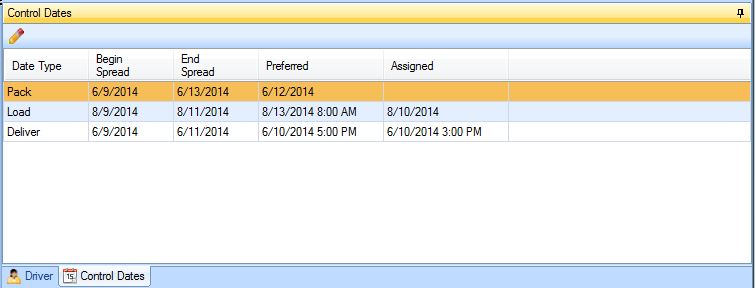
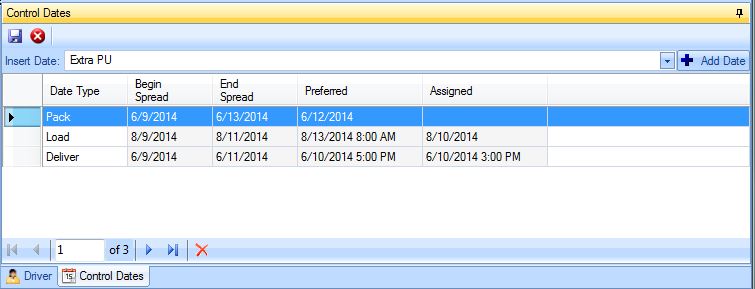
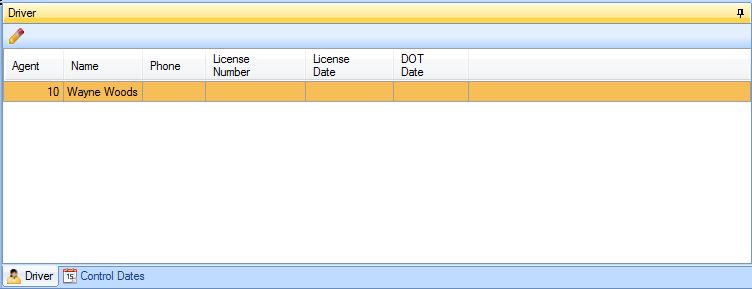
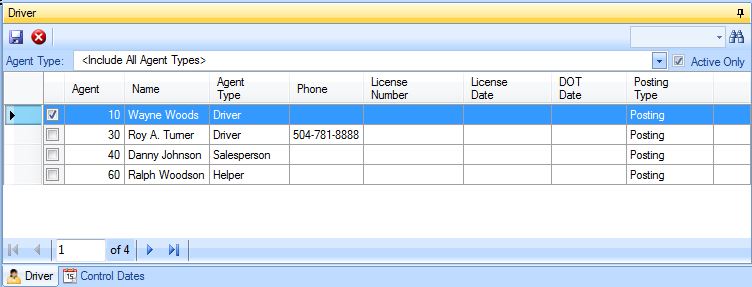
The MoverBiz Big Board allows you to view and manage Company Jobs with the ability to change Control Dates and Commission Agent Driver. There is a focus on Inter/Intrastate moves with the ability to narrow down the Service Types you can view.
Permissions
The Big Board uses the following permissions:
| Permission | Description |
|---|---|
| 1 | Access All Companies |
| 41 | Access Jobs for All Coordinators |
Ribbon Tabs
The ribbon tabs are located at the top of the screen, directly above the Grid area. They have a peach tint and say "Big Board" in the very top of the window. Clicking on the top of the tab will activate it.
Tools Tab
This report has the Default Report Tools as well as the following:
[Export to CSV] Press this button to open the Export to CSV screen.
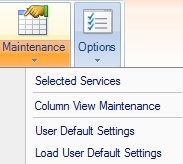
[Selected Services] Press this menu item to edit the Selected Services that are displayed on the Big Board.
[Column View Maintenance] Press this menu item to open the Column View Maintenance screen.
[User Default Settings] Press this menu item to open the Load Board User Default Settings screen.
[Load User Default Settings] Press this button to reload your User Default Settings, resetting the entire screen.
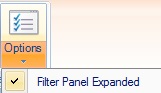
The option menu contain some Yes/No options that control how the Load Board looks:
Filter Panel Expanded Check this option to expand/collapse the Filter panel.
Filter
The Filter allows you to narrow down your Work Tickets based on the specified criteria. Changing the Live Filter will apply the selected criteria immediately, or live.
[x] Use Date Filter Check this box to use the Date section of the Filter.
Date Link Use this drop-box to select the type of date link to filter on: Pack, Load, Deliver or CreatedOn.
Date Type Use this drop-down to select the type of date: Assigned, Preferred, Begin Spread or End Spread.
[x] Is Blank Check this box to return records where the selected date type is blank.
Between/And: Enter or select the date spread to filter on. The selected date must be between the specified dates.
Move Coordinator: If you have permission 41 - Access Jobs for All Coordinators then select the Move Coordinator from the drop-box. If you wish to include all Move Coordinators, then select <All Move Coordinators>. If you do not have permission 41, this field will be pre-set with the UserID of the person logged in.
Company: If you wish to limit the listing to a single Company, then select the Company from the drop-box. If you wish to include all Companies, then select <All Companies>. If you do not have permission 1 - Access All Companies, then this field will be limited to the current logged in company.
Branch: If you wish to limit the listing to a single Company Branch, then select the Branch from the drop-box. If you wish to include all Company Branches, then select <All Branches>.
Service: If you wish to limit the listing to a single Service Type, then select the Service from the drop-box. If you wish to include all Service Types, then select <All Services>. This drop-box will be limited to the Selected Services.
Driver: If you wish to limit the listing to a single Driver, then select the Driver from the drop-box. If you wish to include all Drivers, then select <All Drivers>. If you wish to view Jobs with no driver assigned, then select <No Driver>.
Origin City, State If you wish to narrow down the results by origin city or state, then enter that information here.
Destination City, State If you wish to narrow down the results by origin city or state, then enter that information here.
Weights Between/And: If you wish to narrow down the results within a specific weight range, then enter that information here.
Miles Between/And: If you wish to narrow down the results within a certain mileage, then enter that information here.
[x] Include Currently In SIT Check this box to include Jobs that are currently marked as being in SIT.