Help:DM1-Atlas Registration Interface Utilities: Difference between revisions
added frame |
added content |
||
| Line 2: | Line 2: | ||
{{Page title|Atlas Registration Interface Utilities}} | {{Page title|Atlas Registration Interface Utilities}} | ||
This screen contains the interface utilities for our updated Atlas Connect product. The new version of Atlas Connect runs as a Windows Service on another Server. These utilities will help you configure and maintain Atlas Connect from within IBS. | |||
[[File:DMS_Atlas_Registration_Utils.JPG|link=]] | [[File:DMS_Atlas_Registration_Utils.JPG|link=]] | ||
'''[Atlas Standard Settings]''' Press this button to open the [[Help:DM1-Atlas_Standard_Settings|Atlas Standard Settings]] screen. From here you can [[Help:DM1-Add_Edit_Van_Line_Agent|add your Agencies]] and setup how shipments will import into the Dispatch Manager. This must be configured before the Atlas Connect service will start. | |||
'''[Update History]''' Press this button to open the [[Help:DM1-Update_the_Atlas_History_File|Update History]] screen. From here you can identify the existing Atlas shipments in your system. This must be configured before the Atlas Connect service will start, unless you have no historical data in your system. | |||
'''[Service Control]''' Press this button to open the [[Help:DM1-Change_Service_Lock_Status|Change Service Lock Status]] screen. From here you can start/stop the Windows Service. If you don't seem to be receiving any downloads, this would be the first place to look. Once you have configured the Standard Settings and ran Update History, then click this button and Unlock the Service. You should start downloading SUDS information at that point. | |||
[[File:DMS_Atlas_Registration_Utils_Reports.JPG|link=]] | [[File:DMS_Atlas_Registration_Utils_Reports.JPG|link=]] | ||
'''[Print Download History]''' Press this button to open the [[Help:DM1-Recent_Activity_Report|Recent Activity Report]] screen with the Atlas selections pre-selected. This report tells you the number of Jobs that were downloaded or updated through Atlas Connect. | |||
'''[Print Transaction Log]''' Press this button to open the [[Help:DM1-Van_Line_Transaction_Logs|Van Line Transaction Logs]] screen. Just as in the previous version of Atlas Connect, the transaction log is a place to store additional information that didn't have a place within our system. We have greatly expanded the Miscellaneous fields in Dispatch Manager and can now accommodate a majority of the downloaded information so the transaction logs are sparse. | |||
'''[Print Van Line Memos]''' Press this button to open the [[Help:DM1-Van_Line_Memos|Van Line Memos]] screen. You can view Memos for all Jobs within a specified date range. | |||
[[File:CloseButton.PNG|link=]] Press this button to return to the previous screen. | |||
[[File:HelpButton.PNG|link=]] Press this button to call the Help Screen. | |||
Latest revision as of 18:18, 4 August 2014
This screen contains the interface utilities for our updated Atlas Connect product. The new version of Atlas Connect runs as a Windows Service on another Server. These utilities will help you configure and maintain Atlas Connect from within IBS.
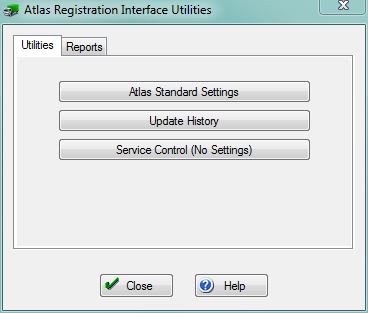
[Atlas Standard Settings] Press this button to open the Atlas Standard Settings screen. From here you can add your Agencies and setup how shipments will import into the Dispatch Manager. This must be configured before the Atlas Connect service will start.
[Update History] Press this button to open the Update History screen. From here you can identify the existing Atlas shipments in your system. This must be configured before the Atlas Connect service will start, unless you have no historical data in your system.
[Service Control] Press this button to open the Change Service Lock Status screen. From here you can start/stop the Windows Service. If you don't seem to be receiving any downloads, this would be the first place to look. Once you have configured the Standard Settings and ran Update History, then click this button and Unlock the Service. You should start downloading SUDS information at that point.
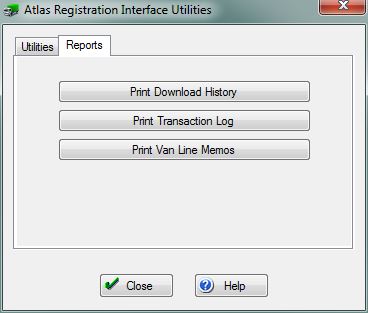
[Print Download History] Press this button to open the Recent Activity Report screen with the Atlas selections pre-selected. This report tells you the number of Jobs that were downloaded or updated through Atlas Connect.
[Print Transaction Log] Press this button to open the Van Line Transaction Logs screen. Just as in the previous version of Atlas Connect, the transaction log is a place to store additional information that didn't have a place within our system. We have greatly expanded the Miscellaneous fields in Dispatch Manager and can now accommodate a majority of the downloaded information so the transaction logs are sparse.
[Print Van Line Memos] Press this button to open the Van Line Memos screen. You can view Memos for all Jobs within a specified date range.
File:CloseButton.PNG Press this button to return to the previous screen.
File:HelpButton.PNG Press this button to call the Help Screen.


