Help:DMS-Active Jobs Selections: Difference between revisions
Updated with new screenshot and info |
unlinked image |
||
| Line 8: | Line 8: | ||
This program option is used to display a list of the currently active Jobs based on the selections made on this screen. | This program option is used to display a list of the currently active Jobs based on the selections made on this screen. | ||
[[File:ActiveJobsSelections.JPG]] | [[File:ActiveJobsSelections.JPG|link=]] | ||
Revision as of 16:46, 31 July 2014
This program option is used to display a list of the currently active Jobs based on the selections made on this screen.
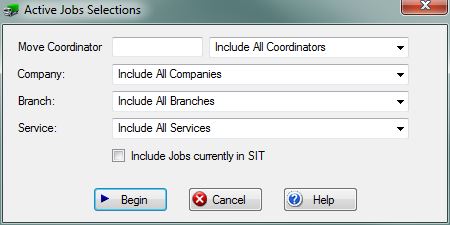
Move Coordinator: If you have permission 41 - Access Jobs for All Coordinators then this field will be blank. You can enter a specific UserID or just leave it blank for all Move Coordinators. You can use the View [?] button to the far right of this field for a list of all active User ID's.
If you do not have permission 41, this field will be pre-set with the UserID of the person logged in and access to active jobs will be limited to this particular User ID.
Company: Use this drop-box to select the specific company whose jobs you wish to see. If you do not have permission 1 - Access All Companies, then this field will be limited to the current logged in company.
Branch: Use this drop-box to select the specific Branch of the company selected in the previous field. If all companies were selected, then this Branch field is unnecessary.
Service: Use this drop-box to select the specific service you wish go include on the display. Select All Services to display all of the services.
[X] Include Jobs currently in SIT Check this box to display all of the Jobs, including ones marked as currently in SIT. Uncheck this box to hide all the Jobs that are currently in SIT.
[Begin] Press this button to Display the Active Company Jobs which match the selections made on this screen.
[Cancel] Press this button to ignore any selections made on this screen and return to the previous screen.
[Help] Press this button to call the Help Screen.

