Help:DM1-Select Standard Letter: Difference between revisions
added frame |
added content |
||
| Line 1: | Line 1: | ||
__NOTITLE__ | __NOTITLE__ | ||
{{Page title|Select Standard Letter}} | {{Page title|Select Standard Letter}} | ||
This screen allows you to select a Standard Letter to attach to a Job. Standard Letters are correspondence that contain "Replacement Variables" that get replaced with actual Job information from the database. This feature is often called "Mail Merge". | |||
[[File:DMS_Select_Standard_Letter.JPG|link=]] | [[File:DMS_Select_Standard_Letter.JPG|link=]] | ||
'''[Select]''' Press this button to select the currently highlighted Standard Letter. The [[Help:DM1-Letter Editor|Letter Editor]] will open the newly merged document and name it the same as the selected Standard Letter. | |||
'''[Insert]''' Press this button to open the [[Help:DM1-Letter Editor|Insert Letter]] screen. From here you can create a Standard Letter from scratch. You will have access to all the available replacement variables in Customer Service/Dispatch Manager. | |||
'''[Change]''' Press this button to open the [[Help:DM1-Letter Editor|Edit Letter]] screen. From here you can make changes to an existing Standard Letter. '''Please note:''' If you do not have permission 71 then this button will be grayed out. | |||
'''[Delete]''' Press this button to remove the selected Standard Letter. You will be prompted to confirm the deletion. '''Please note:''' If you do not have permission 71 then this button will be grayed out. | |||
[[File:CloseButton.PNG|link=]] Press this button to return to the previous screen. | |||
[[File:HelpButton.PNG|link=]] Press this button to call the Help Screen. | |||
Latest revision as of 15:14, 4 August 2014
This screen allows you to select a Standard Letter to attach to a Job. Standard Letters are correspondence that contain "Replacement Variables" that get replaced with actual Job information from the database. This feature is often called "Mail Merge".
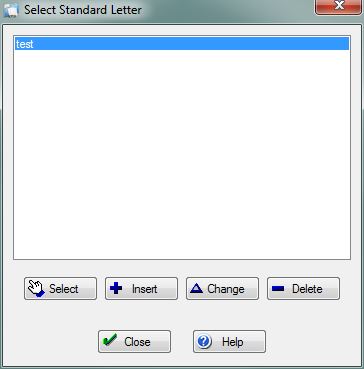
[Select] Press this button to select the currently highlighted Standard Letter. The Letter Editor will open the newly merged document and name it the same as the selected Standard Letter.
[Insert] Press this button to open the Insert Letter screen. From here you can create a Standard Letter from scratch. You will have access to all the available replacement variables in Customer Service/Dispatch Manager.
[Change] Press this button to open the Edit Letter screen. From here you can make changes to an existing Standard Letter. Please note: If you do not have permission 71 then this button will be grayed out.
[Delete] Press this button to remove the selected Standard Letter. You will be prompted to confirm the deletion. Please note: If you do not have permission 71 then this button will be grayed out.
File:CloseButton.PNG Press this button to return to the previous screen.
File:HelpButton.PNG Press this button to call the Help Screen.


