Help:SET-Join Jobs on File Number
From DirectWiki
Join Jobs on File Number

|
Important: This as an advanced Setup feature that requires Support Login to access. |

This option is used to join Master Job records after a Van Line Agent has completed a Multi-Company conversion.
Permissions
You will be prompted to log in using the Dispatch Log In screen. The DM1 password record must have the following permissions set:
| Permission | Description |
|---|---|
| 01 | Access All Companies |
| 09 | Edit Company Jobs |
| 18 | View Completed Jobs |
| 19 | Remove Shipments |
| 41 | Access Jobs For All Coordinators |
| 51 | Edit Work Tickets |
| 56 | Access Work Tickets For All Dispatchers |
Note: We suggest giving the User full DM1 permissions.
Form Layout
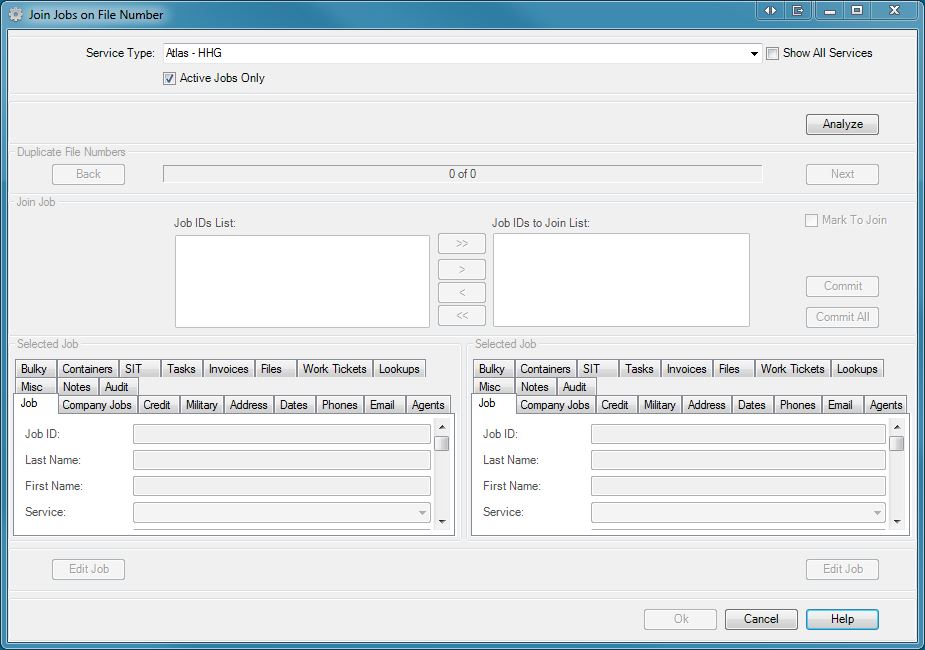
Service Type: Use this drop-box to select a specific Service for the Job analysis. Select 'Include All Services' to remove this filtering.
Show All Services: Check this box to include all services in the Service Type drop-box, including non-program controlled. (Service ID 100+)
|
|
Important: Narrowing the affected Jobs by Service Type is only effective for Van Line Jobs where the Service Type is under program control. For all other Service Types , please select 'Include All Services' from the dropdown for the most reliable results. |
Active Jobs Only: Check this box to only include active Jobs in the Job analysis.
[Analyze] Press this button to start the Job analysis.
Procedure
- Select a specific Service from the drop-box
- Press the [Analyze] button to begin the Job analysis according to the following criteria:
- Jobs must be of the specified Service Type unless 'Include All Services' is selected
- At least 2 Jobs must be found with duplicate File Number
- At least 1 of the found Jobs must be active if 'Active Jobs Only' is checked
- At least 2 of the found Jobs must have different Company/Branch IDs
- A progress bar will appear to the left side of the [Analyze] along with a counter for the number of Jobs analyzed. The rest of the form will be disabled during the analysis but you can still press the [Cancel] button at the bottom of the form to abort the process. You must restart from step one if you cancel.

