Help:DM1-MoverBiz Load Board: Difference between revisions
No edit summary |
added content |
||
| Line 55: | Line 55: | ||
'''[Print Work Tickets]''' Press this button | '''[Print Work Tickets]''' Press this button to open the [[Help:DM1-Print_Work_Tickets/Dispatch_Listing|Print Work Tickets]] screen. | ||
''' | '''[Dispatch Listing]''' Press this button to open the [[Help:DM1-Print_Work_Tickets/Dispatch_Listing|Dispatch Listing]] screen. | ||
[[File:DMS_Load_Board_Maintenance_Menu.jpg|link=]] | |||
'''[Edit Work Type Colors]''' Press this menu item to edit the [[Help:DM1-Work_Type_Colors|Work Type Colors]]. | |||
''' | '''[Column View Maintenance]''' Press this menu item to open the [[Help:DM1-Column_View_Maintenance|Column View Maintenance]] screen. | ||
'''[User Default Settings]''' Press this menu item to open the [[Help:DM1-Load_Board_User_Default_Settings|Load Board User Default Settings]] screen. | |||
'''[ | '''[Load User Default Settings]''' Press this button to reload your User Default Settings, resetting the entire screen. | ||
[[File:DMS_Load_Board_Options_Menu.jpg|link=]] | [[File:DMS_Load_Board_Options_Menu.jpg|link=]] | ||
The option menu contain some Yes/No options that control how the Load Board looks: | |||
'''Filter Panel Expanded''' Check this option to expand/collapse the Filter panel. | |||
'''Work Tickers Grid Expanded''' Check this option to expand/collapse the Work Tickets Grid at the bottom of the screen. | |||
'''Use Colors In Calendar:''' Check this option to display the [[Help:DM1-Work_Type_Colors|Work Type Colors]] on the calendar. | |||
'''Use Colors In Grid:''' Check this option to display the [[Help:DM1-Work_Type_Colors|Work Type Colors]] in the grid below the calendar and in all of the Work Ticket management reports. | |||
| Line 135: | Line 148: | ||
'''Move Coordinator:''' If you | '''Move Coordinator:''' If you have permission 41 - Access Jobs for All Coordinators then select the Move Coordinator from the drop-box. If you wish to include all Move Coordinators, then select <All Move Coordinators>. If you do not have permission 41, this field will be pre-set with the UserID of the person logged in. | ||
'''Company:''' If you wish to limit the listing to a single Company, then select the Company from the drop-box. If you wish to include all Companies, then select <All Companies>. | '''Company:''' If you wish to limit the listing to a single Company, then select the Company from the drop-box. If you wish to include all Companies, then select <All Companies>. If you do not have permission 1 - Access All Companies, then this field will be limited to the current logged in company. | ||
| Line 166: | Line 179: | ||
== Calendar == | == Calendar == | ||
=== Select View === | === Select View === | ||
Use this drop down to select the current [[Help:DM1-Column_View_Maintenance|Column View]]. These views control which fields are visible in the Work Ticket Grid as well as sort order. | |||
=== Search === | === Search === | ||
Use this search box to narrow down your results based on a few select fields. | |||
=== Appointment Calendar === | === Appointment Calendar === | ||
The appointment calendar will display all filtered Work Tickets at their Work Start Time or Requested Time, depending on which one is filled out. You must fill out the Estimated time on the work ticket in order for it to display properly on the Load Board. The only exception to this rule is Finished Work Tickets where the Work End Time is used to create the calendar appointment. You can view Work Tickets in Day, Work Week, Week, Two Week and Month modes. | |||
Hovering over the appoint will display additional information. You can also double click the appointment to open the Edit Work Ticket screen and right-click the appointment to bring up a menu that allows you to Edit Work Ticket or Edit Company Job. | |||
== Work Ticket Grid View == | == Work Ticket Grid View == | ||
The Work Ticket Grid displays the Work Tickets in a spreadsheet style grid. You can control the columns and sort order using [[Help:DM1-Column_View_Maintenance|Column Views]] | |||
== Tool Windows == | == Tool Windows == | ||
The addition of '''Tool Windows''' to the MoverBiz Load Board allows us to bring you additional functionality that can be hidden when not used. Hovering over the the tabs on the far right-hand side of the screen will make the Tool Windows temporarily pop-out. When you click elsewhere on the Load Board, the tool window will collapse again. Use the black thumbtack in the yellow header of the Tool Window to "pin" it, or permanently expand the window. | |||
You can also click and hold the yellow header of a Tool Window to drag and re-dock it. You can use your Load Board User Default Settings to save the position and pinning of these windows. | |||
=== Assignments Window === | === Assignments Window === | ||
Revision as of 13:49, 18 August 2014

The MoverBiz Load Board allows you to dispatch and manage Work Tickets. The Live Filter allows you to control what you see while the dual-view Calendar and Grid View allow you to fully customize how you see it. The Tool Windows give you the ability to edit work dates or change assignments without having to open the Work Ticket record. Use the various Reports to manage Work Tickets that don't have assignments, dates, dispatcher, etc.
Permissions
The Load Board uses the following permissions:
| Permission | Description |
|---|---|
| 1 | Access All Companies |
| 41 | Access Jobs for All Coordinators |
| 56 | Access Work Tickets for All Dispatchers |
Ribbon Tabs
The ribbon tabs are located at the top of the screen, directly above the Calendar/Grid View area. They have a purple tint and say "Load Board" in the very top of the window. Clicking on the top of the tab will activate it.
Tools Tab
This report has the Default Report Tools as well as the following:
[Print Work Tickets] Press this button to open the Print Work Tickets screen.
[Dispatch Listing] Press this button to open the Dispatch Listing screen.
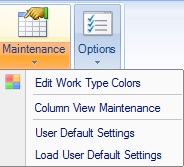
[Edit Work Type Colors] Press this menu item to edit the Work Type Colors.
[Column View Maintenance] Press this menu item to open the Column View Maintenance screen.
[User Default Settings] Press this menu item to open the Load Board User Default Settings screen.
[Load User Default Settings] Press this button to reload your User Default Settings, resetting the entire screen.
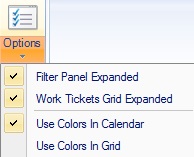
The option menu contain some Yes/No options that control how the Load Board looks:
Filter Panel Expanded Check this option to expand/collapse the Filter panel.
Work Tickers Grid Expanded Check this option to expand/collapse the Work Tickets Grid at the bottom of the screen.
Use Colors In Calendar: Check this option to display the Work Type Colors on the calendar.
Use Colors In Grid: Check this option to display the Work Type Colors in the grid below the calendar and in all of the Work Ticket management reports.
Calendar Tab
[1 Day] Highlight this button to show a single day on the Calendar.
[Work Week] Highlight this button to show a five day work week (M-F) on the Calendar.
[Full Week] Highlight this button to show a full week on the Calendar.
[Two Weeks] Highlight this button to show two full weeks on the Calendar.
[Month] Highlight this button to show a full month on the Calendar.
[Backward] Press this button to go backward a single unit of the selected Calendar View. For example, If "Month" was the selected Calendar View, you would go backward a single month.
[Forward] Press this button to go forward a single unit of the selected Calendar View. For example, If "Month" was the selected Calendar View, you would go forward a single month.
[Today] Press this button to go to today's date using the "Day" Calendar View.
[Time Scale] Select a time scale from the drop-down menu. This will change the size of the visible time in the Day, Work Week and Full Week views.
Filter
The Filter allows you to narrow down your Work Tickets based on the specified criteria.
Mini-Calendar
Use this mini-monthly calendar to select a date range from a single day up to 5 full weeks. Press the down arrows in the Filter header to minimize the filter and display more of the mini-calendar.
Date Selections
Begin Spread: Use this drop down calendar to select the Begin spread of the Work Dates for this listing. This control is only visible on the Reports.
End Spread: Use this drop down calendar to select the End spread of the Work Dates for this listing. This control is only visible on the Reports.
[Set Date] Press this button to implement the date changes to the selected report.
Live Filter
Changing the Live Filter will apply the selected criteria immediately, or live.
Dispatcher: If you wish to limit the listing to a single Dispatcher, then select the Dispatcher from the drop-box. If you wish to include all Dispatchers, then select <All Dispatchers>.
Move Coordinator: If you have permission 41 - Access Jobs for All Coordinators then select the Move Coordinator from the drop-box. If you wish to include all Move Coordinators, then select <All Move Coordinators>. If you do not have permission 41, this field will be pre-set with the UserID of the person logged in.
Company: If you wish to limit the listing to a single Company, then select the Company from the drop-box. If you wish to include all Companies, then select <All Companies>. If you do not have permission 1 - Access All Companies, then this field will be limited to the current logged in company.
Branch: If you wish to limit the listing to a single Company Branch, then select the Branch from the drop-box. If you wish to include all Company Branches, then select <All Branches>.
Service: If you wish to limit the listing to a single Service Type, then select the Service from the drop-box. If you wish to include all Service Types, then select <All Services>.
Work Type: If you wish to limit the listing to a single Work Type, then select the Work Type from the drop-box. If you wish to include all Work Types, then select <All Work Types>.
Work Ticket Status: Check the Work Ticket statuses you want displayed on the Load Board. The default is "Pending" and "Scheduled"
Calendar/Report Buttons
These buttons control whether you see the Calendar or Reports section of the Load board.
[Calendar] Highlight this button to activate the Calendar view of the Load Board.
[Reports] Highlight this button to activate the Reports view of the Load Board.
Calendar
Select View
Use this drop down to select the current Column View. These views control which fields are visible in the Work Ticket Grid as well as sort order.
Search
Use this search box to narrow down your results based on a few select fields.
Appointment Calendar
The appointment calendar will display all filtered Work Tickets at their Work Start Time or Requested Time, depending on which one is filled out. You must fill out the Estimated time on the work ticket in order for it to display properly on the Load Board. The only exception to this rule is Finished Work Tickets where the Work End Time is used to create the calendar appointment. You can view Work Tickets in Day, Work Week, Week, Two Week and Month modes.
Hovering over the appoint will display additional information. You can also double click the appointment to open the Edit Work Ticket screen and right-click the appointment to bring up a menu that allows you to Edit Work Ticket or Edit Company Job.
Work Ticket Grid View
The Work Ticket Grid displays the Work Tickets in a spreadsheet style grid. You can control the columns and sort order using Column Views
Tool Windows
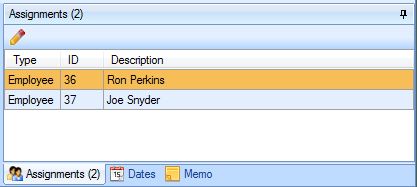
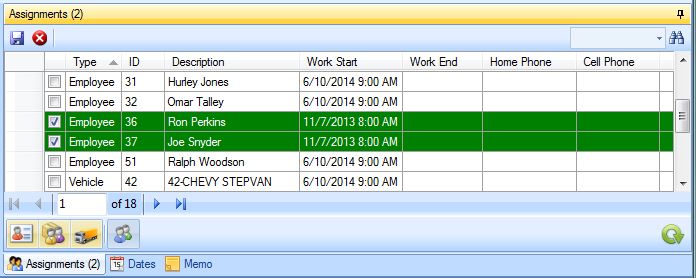
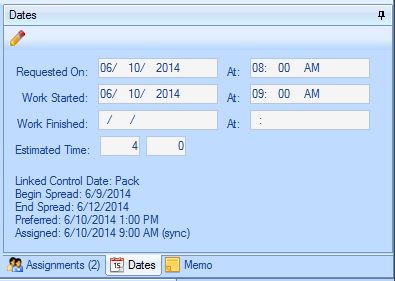
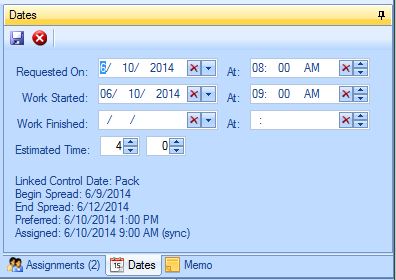
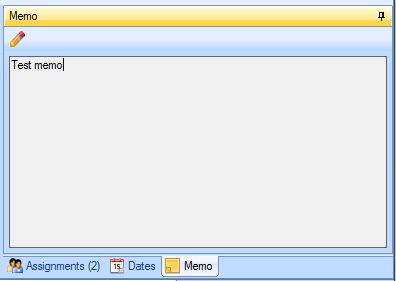
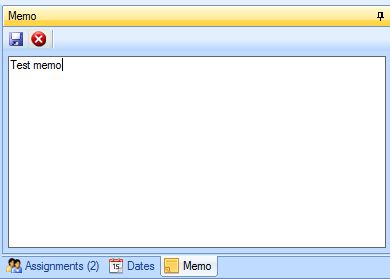
The addition of Tool Windows to the MoverBiz Load Board allows us to bring you additional functionality that can be hidden when not used. Hovering over the the tabs on the far right-hand side of the screen will make the Tool Windows temporarily pop-out. When you click elsewhere on the Load Board, the tool window will collapse again. Use the black thumbtack in the yellow header of the Tool Window to "pin" it, or permanently expand the window.
You can also click and hold the yellow header of a Tool Window to drag and re-dock it. You can use your Load Board User Default Settings to save the position and pinning of these windows.
Assignments Window
Dates Window
Memo Window
Reports
Selected Work Tickets Report
Work Tickets With No Work Dates Report
This window will list all of the services which have been completed by Customer Service but have no work dates assigned by Dispatch. Services are completed by Customer Service only when they have a Beginning and Ending Spread Date and a Preferred Date. Without these dates, the Dispatcher has no information as to when to schedule the work. Any operationally complete Service whose Beginning Spread Date falls on or before the Report Date entered and which have no assigned Work Date will be listed on this window. Once this window is blank, the Dispatcher has properly assigned a Work Date to all of the services to be performed as of the Report Date entered.
Work Tickets With No Assignments Report
This window will display all of the Services with a Work Date equal to the specified Report Date which have no assignments attached to them. This window is to be used after the Services have been assigned Work Dates in the Services With No Work Dates menu option. If the Service has no Work Date, then it will not be displayed on this window.
You will be allowed to assign Assignments to these services from this window. Once there are no more Services appearing on this window, then all of the Services for the selected Report Date have at least one Assignment attached to them.
Work Tickets With No Estimated Time Report
This window will identify all of the Services which have no Estimated Time on the selected Report Date which have not been completed in the system.
Work Tickets With No Dispatcher Report
This window will identify all of the Services which have no Dispatcher assigned on the selected Report Date which have not been completed in the system.
Work Tickets With Incomplete Work Dates Report
This window will identify all of the Services which were supposed to be done on the selected Report Date which have not been completed in the system. To be complete, each Service must have a Beginning Work Date and Time and an Ending Work Date and Time.
These services can be edited from this window. When there are no more listings on this window, then all of the Services have been properly completed by the Dispatcher.
Work Tickets With Incomplete Assignments Report
This window is to be used after the Services With Incomplete Dates menu option. It will identify the Services for the selected Report Date which have Assignments with incomplete dates. The dates that need to be filled in for each Assignment are the Begin Work Date and Time and the Ending Work Date and Time. The Billable Hours field must also be filled in if the Transfer to Payroll box is checked or if the Hours radio button on the Use for Billing field is selected.
These services can be edited from this window. When there are no more listings on this window, then all of the Assignments have been properly completed by the Dispatcher. These Shipments will then be ready for the Billing department.

