Help:DM1-Atlas Standard Settings: Difference between revisions
added frame |
added content |
||
| Line 2: | Line 2: | ||
{{Page title|Atlas Standard Settings}} | {{Page title|Atlas Standard Settings}} | ||
This screen allows you to configure the Atlas Connect service and add your Van Line Agents that are involved in the process. | |||
{{Important tip| This screen will be grayed out when you first open it. You will need to press the [[File:EditButton.PNG|link=]] to enable the screen for changes.}} | |||
[[File:DMS_Atlas_Standard_Settings.JPG|link=]] | [[File:DMS_Atlas_Standard_Settings.JPG|link=]] | ||
'''[Add]''' Press this button to open the [[Help:DM1-Add_Edit_Van_Line_Agent|Add Agency]] screen. | |||
'''[Edit Agency]''' Press button to open the [[Help:DM1-Add_Edit_Van_Line_Agent|Edit Agency]] screen and make changes to the highlighted Agent. | |||
'''[Delete]''' Press this button to delete the highlighted Agent record. You will be prompted to confirm the deletion. | |||
=== Options === | |||
'''[x] Use Dispatch:''' If this option is checked, the Atlas Connect service will automatically create Work Tickets for Pack, Load & Deliver, depending on an Agency's participation. If a Job's Origin Agent is listed above then a Pack & Load Work Ticket will be created just for that Agent. If the Job's Destination Agent is listed above then a Deliver Work Ticket is created. When updated dates come down through Atlas Connect, corresponding Work Ticket times will be updated. | |||
'''[x] Dispatch Work Tickets:''' If this option is checked, then Work Tickets that are created through the Atlas Connect will receive a Work Start Time according to their corresponding settings on the Work Ticket tab. This date will be replaced if an updated date record is downloaded. This option will ensure that all Atlas Connect Work Tickets show up on the MoverBiz Load Board. | |||
'''[x] Split Name On First Space:''' If this option is checked, the Name that comes down through Atlas Connect will be split on the first space with the second part getting moved into the First Name field on the Job. This will only apply if there is a single space in the Name. Any name with more than 1 space will be left as downloaded in the Last Name/Company field on a Job. | |||
'''[x] Copy First Phone to Main Job Phone:''' If this option is checked, the first phone number that is downloaded will be copied to the Main Job Phone record. This only applies if no Main Job Phone record is found in on a Job. So subsequent downloads will not update this record. | |||
'''[x] Send DA Registrations Only To Completed:''' If this option is checked, Jobs are automatically sent to Completed if the Destination Agent is the only participating agency. | |||
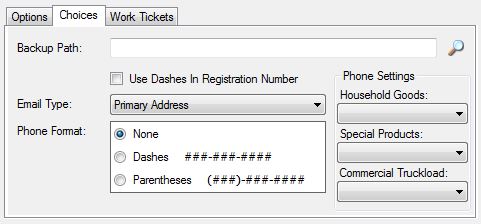
[[File:DMS_Atlas_Standard_Settings_Choices_tab.JPG|link=]] | [[File:DMS_Atlas_Standard_Settings_Choices_tab.JPG|link=]] | ||
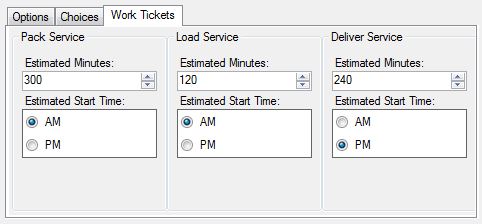
[[File:DMS_Atlas_Standard_Settings_Work_Tickets_tab.JPG|link=]] | [[File:DMS_Atlas_Standard_Settings_Work_Tickets_tab.JPG|link=]] | ||
Revision as of 18:50, 4 August 2014
This screen allows you to configure the Atlas Connect service and add your Van Line Agents that are involved in the process.

|
Important: This screen will be grayed out when you first open it. You will need to press the File:EditButton.PNG to enable the screen for changes. |
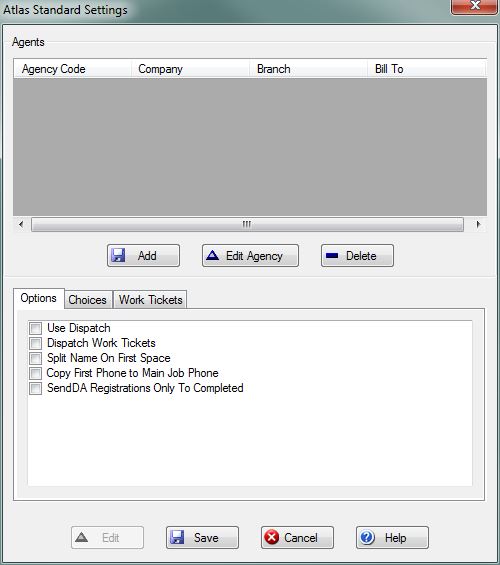
[Add] Press this button to open the Add Agency screen.
[Edit Agency] Press button to open the Edit Agency screen and make changes to the highlighted Agent.
[Delete] Press this button to delete the highlighted Agent record. You will be prompted to confirm the deletion.
Options
[x] Use Dispatch: If this option is checked, the Atlas Connect service will automatically create Work Tickets for Pack, Load & Deliver, depending on an Agency's participation. If a Job's Origin Agent is listed above then a Pack & Load Work Ticket will be created just for that Agent. If the Job's Destination Agent is listed above then a Deliver Work Ticket is created. When updated dates come down through Atlas Connect, corresponding Work Ticket times will be updated.
[x] Dispatch Work Tickets: If this option is checked, then Work Tickets that are created through the Atlas Connect will receive a Work Start Time according to their corresponding settings on the Work Ticket tab. This date will be replaced if an updated date record is downloaded. This option will ensure that all Atlas Connect Work Tickets show up on the MoverBiz Load Board.
[x] Split Name On First Space: If this option is checked, the Name that comes down through Atlas Connect will be split on the first space with the second part getting moved into the First Name field on the Job. This will only apply if there is a single space in the Name. Any name with more than 1 space will be left as downloaded in the Last Name/Company field on a Job.
[x] Copy First Phone to Main Job Phone: If this option is checked, the first phone number that is downloaded will be copied to the Main Job Phone record. This only applies if no Main Job Phone record is found in on a Job. So subsequent downloads will not update this record.
[x] Send DA Registrations Only To Completed: If this option is checked, Jobs are automatically sent to Completed if the Destination Agent is the only participating agency.