Help:Common-Adding an Image File: Difference between revisions
added frame |
added content |
||
| Line 2: | Line 2: | ||
{{Page title|Adding an Image File}} | {{Page title|Adding an Image File}} | ||
This screen allows you to Add an Image File to the database. Added files are copied to a central location in the IBS Programs folder. This directory should be included in any backup routine you might have on the server. In the case of DM1, the new file will be attached to the currently selected Job. With WLS, the new file will be attached to the currently selected Lot, which is Company specific. | |||
[[File:Common_Images_Add_Image.JPG|link=]] | [[File:Common_Images_Add_Image.JPG|link=]] | ||
'''File Location:''' Type the path to a file or press the magnifying glass button to browse for a file. The file path must be valid or else you cannot proceed with the Insert. | |||
'''[x] Delete Original File After Insert:''' Use this checkbox to specify if the original file should attempt to be deleted after the insert process. There are a number of factors that could prevent this from happening. Even if you receive an error trying to delete the file, rest-assured the original file will get copied to a central location and the Image record was created in the database. This can be confirmed by selecting the new file from the Images screen and pressing "View Image". | |||
'''Description:''' This is a short description of the Image file. This textbox is automatically filled out with the file name if you browse for a file under File Location. | |||
'''Notes:''' This is memo pad to record additional information about the Image File. | |||
'''Extension''' This displays the file extension of the Image. The textbox is not editable and is automatically filled out when you browse for a file under File Location. If the extension is unknown, the Plus(+) button will be enabled and allow you to [[Help:Common-Add_Edit_Extension|add the extension]] to the system. | |||
'''Size:''' The size of the Image file in bytes. | |||
'''Created By:''' This displays the UserID and timestamp from when the Image was first added. | |||
'''Modified By:''' This displays the UserID and timestamp from the last time the Image record was modified. '''Please note:''' This is not from the last time the actual file was modified. | |||
[[File:AddButton.PNG|link=]] Press this button to add the file to the system. If any validation rules need attention, you will be prompted with a red exclamation mark beside the offending field. | |||
[[File:CancelButton.PNG|link=]] Press this button can the Insert and return to the previous screen. | |||
[[File:HelpButton.PNG|link=]] Press this button to call the Help Screen. | |||
Revision as of 18:51, 1 August 2014
This screen allows you to Add an Image File to the database. Added files are copied to a central location in the IBS Programs folder. This directory should be included in any backup routine you might have on the server. In the case of DM1, the new file will be attached to the currently selected Job. With WLS, the new file will be attached to the currently selected Lot, which is Company specific.
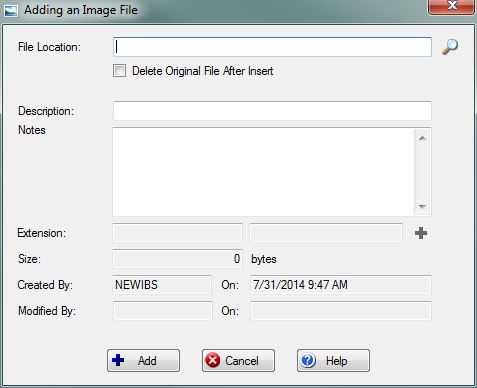
File Location: Type the path to a file or press the magnifying glass button to browse for a file. The file path must be valid or else you cannot proceed with the Insert.
[x] Delete Original File After Insert: Use this checkbox to specify if the original file should attempt to be deleted after the insert process. There are a number of factors that could prevent this from happening. Even if you receive an error trying to delete the file, rest-assured the original file will get copied to a central location and the Image record was created in the database. This can be confirmed by selecting the new file from the Images screen and pressing "View Image".
Description: This is a short description of the Image file. This textbox is automatically filled out with the file name if you browse for a file under File Location.
Notes: This is memo pad to record additional information about the Image File.
Extension This displays the file extension of the Image. The textbox is not editable and is automatically filled out when you browse for a file under File Location. If the extension is unknown, the Plus(+) button will be enabled and allow you to add the extension to the system.
Size: The size of the Image file in bytes.
Created By: This displays the UserID and timestamp from when the Image was first added.
Modified By: This displays the UserID and timestamp from the last time the Image record was modified. Please note: This is not from the last time the actual file was modified.
File:AddButton.PNG Press this button to add the file to the system. If any validation rules need attention, you will be prompted with a red exclamation mark beside the offending field.
File:CancelButton.PNG Press this button can the Insert and return to the previous screen.
File:HelpButton.PNG Press this button to call the Help Screen.


