Help:SET-Join Jobs on File Number: Difference between revisions
No edit summary |
No edit summary |
||
| Line 11: | Line 11: | ||
This option is used to join Master Job records after a Van Line Agent has completed a Multi-Company conversion. | This option is used to join Master Job records after a Van Line Agent has completed a Multi-Company conversion. | ||
| Line 142: | Line 139: | ||
== Affected Tables/Fields == | == Affected Tables/Fields == | ||
The following tables are involved in the joining process. | |||
Scope pertains to whether the table is enterprise or company specific. Records in enterprise specific tables will get deleted, merged or retained (if they are 'master' records.) All records in company specific tables will be retained but re-assigned the Job ID from the 'master'. | |||
{| class="wikitable" cellpadding="40" | |||
|- | |||
! scope="col"| Table | |||
! scope="col"| Description | |||
! scope="col"| Scope | |||
|- | |||
| [[#DJJobMaster|DJJobMaster]] | |||
| Job Master | |||
| enterprise | |||
|- | |||
| DJJobCredit | |||
| Credit/Billing | |||
| enterprise | |||
|- | |||
| DJJobMilitary | |||
| Military | |||
| enterprise | |||
|- | |||
| DJJobAgents | |||
| Van Line Agents | |||
| enterprise | |||
|- | |||
| DJJobDates | |||
| Control Dates | |||
| enterprise | |||
|- | |||
| DJJobAddress | |||
| Addresses | |||
| enterprise | |||
|- | |||
| DJJobBulky | |||
| Bulky Items | |||
| enterprise | |||
|- | |||
| DJJobContainers | |||
| Containers | |||
| enterprise | |||
|- | |||
| DJJobEmail | |||
| Email Addresses | |||
| enterprise | |||
|- | |||
| DJJobInstructions | |||
| Instructions | |||
| enterprise | |||
|- | |||
| DJJobLookup | |||
| Misc Lookups | |||
| enterprise | |||
|- | |||
| DJJobMisc | |||
| Misc Fields | |||
| enterprise | |||
|- | |||
| DJJobNotes | |||
| Notes | |||
| enterprise | |||
|- | |||
| DJJobPhones | |||
| Phone Numbers | |||
| enterprise | |||
|- | |||
| DJJobServices | |||
| 3rd-Party Services | |||
| enterprise | |||
|- | |||
| DJJobSIT | |||
| S.I.T. | |||
| enterprise | |||
|- | |||
| DJJobLog | |||
| Audit Trail | |||
| enterprise | |||
|- | |||
| DMCompanyJob | |||
| Company Job | |||
| company | |||
|- | |||
| DMInvoice | |||
| Invoices | |||
| company | |||
|- | |||
| DMWorkTicket | |||
| Work Tickets | |||
| company | |||
|} | |||
=== DJJobMaster === | |||
Job Master | |||
=== DJJobCredit === | |||
Credit/Billing | |||
=== DJJobMilitary === | |||
Military | |||
=== DJJobAgents === | |||
Van Line Agents | |||
=== DJJobDates === | |||
Control Dates | |||
=== DJJobAddress === | |||
Addresses | |||
=== DJJobBulky === | |||
Bulky Items | |||
=== DJJobContainers === | |||
Containers | |||
=== DJJobEmail === | |||
Email Addresses | |||
=== DJJobInstructions === | |||
Instructions | |||
=== DJJobLookup === | |||
Misc Lookups | |||
=== DJJobMisc === | |||
Misc Fields | |||
=== DJJobNotes === | |||
Notes | |||
=== DJJobPhones === | |||
Phone Numbers | |||
=== DJJobServices === | |||
3rd-Party Services | |||
=== DJJobSIT === | |||
S.I.T. | |||
=== DJJobLog === | |||
Audit Trail | |||
=== DMCompanyJob === | |||
Company Job | |||
=== DMInvoice === | |||
Invoices | |||
=== DMWorkTicket === | |||
Work Tickets | |||
Revision as of 21:13, 14 August 2013

|
Important: This as an advanced Setup feature that requires Support Login to access. |

This option is used to join Master Job records after a Van Line Agent has completed a Multi-Company conversion.
Permissions
You will be prompted to log in using the Dispatch Log In screen. The DM1 password record must have the following permissions set:
| Permission | Description |
|---|---|
| 01 | Access All Companies |
| 09 | Edit Company Jobs |
| 18 | View Completed Jobs |
| 19 | Remove Shipments |
| 41 | Access Jobs For All Coordinators |
| 51 | Edit Work Tickets |
| 56 | Access Work Tickets For All Dispatchers |
Note: We suggest giving the User full DM1 permissions.
Form Layout
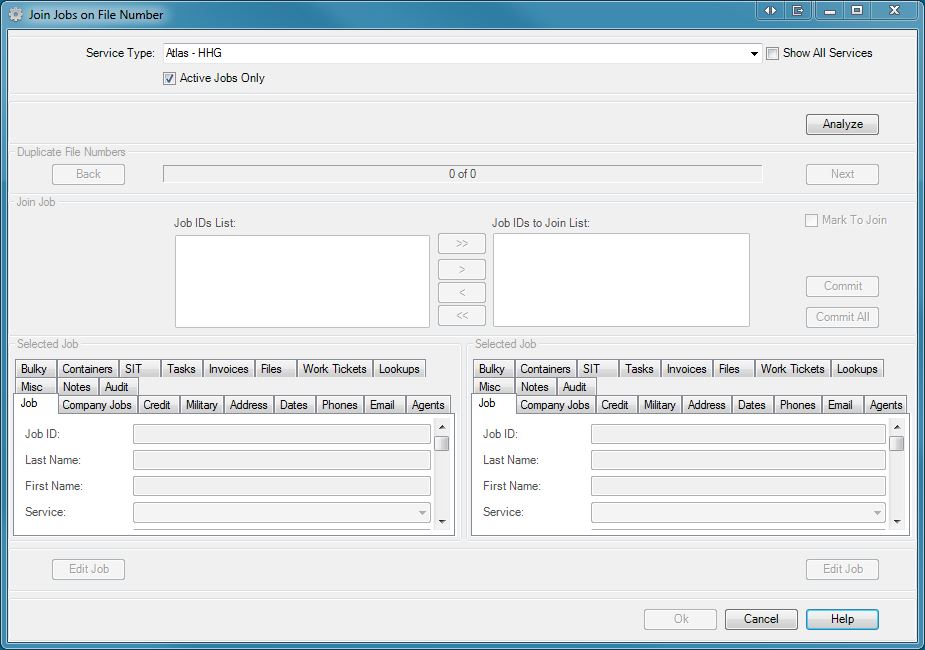
Service Type: Use this drop-box to select a specific Service for the initial Job analysis. Select 'Include All Services' to remove this filtering.
Show All Services: Check this box to include all services in the Service Type drop-box, including non-program controlled. (Service ID 100+)
|
|
Important: Narrowing the affected Jobs by Service Type is only effective for Van Line Jobs where the Service Type is under program control. For all other Service Types , we suggest selecting 'Include All Services' from the drop-box for the most reliable results. |
Active Jobs Only: Check this box to only include active Jobs in the analysis.
[Analyze] Press this button to start the Job analysis. The results are collected directly below in the Duplicate File Numbers collection.
[Back] Press this button to navigate backwards one item in the Duplicate File Numbers collection.
[Next] Press this button to navigate forwards one item in the Duplicate File Numbers collection.
Job List: This list displays the Job IDs for the shipments that ARE NOT to be joined. Click on a Job ID from this list to select. The Job will be displayed in the Selected Job control directly below the list.
[ >> ] Press this button to add all of the Jobs to the Join List
[ > ] Press this button to add the selected Job to the Join List
[ < ] Press this button to remove the selected Job from the Join List
[ << ] Press this button to remove all of the Jobs from the Join List
Join List: This list displays the Job IDs for the shipments that ARE to be joined. Click on a Job ID from this list to select and click a second time to toggle the item's checkbox. Only one item may be checked at a time and this indicates that the checked Job is the 'master', the base job that will retain all of it's records when the changes are committed to the database. The Job will be displayed in the Selected Job control directly below the list.
Mark To Join: Check this box to indicate that your selections in the Join List are final and ready to be committed to the database. This checkbox will only be enabled if proper criteria is met: At least 2 Jobs on the Join List, one of which is checked as 'master'.
[Commit] Press this button to commit the current Join List to the database. See below for the affected tables and fields.
[Commit All] Press this button to commit all uncommitted Join Lists that have their Mark To Join box checked.
Selected Job: Use these controls to view the selected Job's raw data from all tables involved in the joining process.
[Edit Job] Press this button to edit or view (finished jobs) the corresponding Selected Job using an IBS Company Job screen.
Multi-line Tabs: Check this box to view the tabs in the Selected Job control on multiple lines. Otherwise the tabs will be displayed on a single line with side scroll buttons for navigation.
[OK] Press this button to close this window and return to the previous screen.
[Cancel] Press this button to close this window and return to the previous screen. This button will also abort during the analysis process
[Help] Press this button to call the Help Screen.
Procedure
- Select a specific Service from the drop-box
- Press the [Analyze] button to begin the Job analysis according to the following criteria:
- Jobs must be of the specified Service Type unless 'Include All Services' is selected
- At least 2 Jobs must be found with duplicate File Number
- At least 1 of the found Jobs must be active if 'Active Jobs Only' is checked
- At least 2 of the found Jobs must have different Company/Branch IDs
- A progress bar will appear to the left of the [Analyze] button along with a counter for the number of Jobs analyzed. The rest of the form will be disabled during the analysis but you can still press the [Cancel] button at the bottom of the form to abort the process. You must restart from step one if you cancel.
- Press the [Next] button to move to the first item in the Duplicate File Numbers collection. This will load the Job List with Job IDs.
- Click on each Job ID and use the Selected Job control to determine which Jobs to add to the Join List and which Job should be 'master'. Here are a few tips:
- It is a good idea to keep the Active Jobs Only box checked for analysis. This will ensure that there is at least one active Job, one of which should be considered to be the 'master'.
- We suggest adding one Job for each unique Company/Branch to the Join List.
- In some cases there will be multiple finished Jobs for a given Company/Branch in the Job List. This is due to the fact that you had to clone an historical shipment to reactivate it in the TPS system. If there are multiples, you can use the Audit Date at the bottom of the Job tab to determine the newest Job. Only one Job for each unique Company/Branch should be added to the Join List.
- The Company Jobs tab contains some of the most important information to help you make your choices such as the Company ID, Branch ID and Status.
- If the proper criteria is met then check the Mark For Join box to indicate that the list is ready to be committed to the database.
- At this point you can either press the [Next] button to move on or press the [Commit] button to immediately commit the changes to the database. If you press the [Commit] button then you will still need to press [Next] once the commit is complete. After you press [Next] then go back and repeat step 5 on.
- Once you have reached the end of the Duplicate File Numbers collection you can either press the [Back] button to verify information or press the [Commit All] button to send all uncommitted changes to the database.
- Each commit also writes a record to the Van Line Job Link table for use with any of Direct System's Van Line Connect products.
- Press the [Ok] button to close the form when you are done.
Affected Tables/Fields
The following tables are involved in the joining process.
Scope pertains to whether the table is enterprise or company specific. Records in enterprise specific tables will get deleted, merged or retained (if they are 'master' records.) All records in company specific tables will be retained but re-assigned the Job ID from the 'master'.
| Table | Description | Scope |
|---|---|---|
| DJJobMaster | Job Master | enterprise |
| DJJobCredit | Credit/Billing | enterprise |
| DJJobMilitary | Military | enterprise |
| DJJobAgents | Van Line Agents | enterprise |
| DJJobDates | Control Dates | enterprise |
| DJJobAddress | Addresses | enterprise |
| DJJobBulky | Bulky Items | enterprise |
| DJJobContainers | Containers | enterprise |
| DJJobEmail | Email Addresses | enterprise |
| DJJobInstructions | Instructions | enterprise |
| DJJobLookup | Misc Lookups | enterprise |
| DJJobMisc | Misc Fields | enterprise |
| DJJobNotes | Notes | enterprise |
| DJJobPhones | Phone Numbers | enterprise |
| DJJobServices | 3rd-Party Services | enterprise |
| DJJobSIT | S.I.T. | enterprise |
| DJJobLog | Audit Trail | enterprise |
| DMCompanyJob | Company Job | company |
| DMInvoice | Invoices | company |
| DMWorkTicket | Work Tickets | company |
DJJobMaster
Job Master
DJJobCredit
Credit/Billing
DJJobMilitary
Military
DJJobAgents
Van Line Agents
DJJobDates
Control Dates
DJJobAddress
Addresses
DJJobBulky
Bulky Items
DJJobContainers
Containers
DJJobEmail
Email Addresses
DJJobInstructions
Instructions
DJJobLookup
Misc Lookups
DJJobMisc
Misc Fields
DJJobNotes
Notes
DJJobPhones
Phone Numbers
DJJobServices
3rd-Party Services
DJJobSIT
S.I.T.
DJJobLog
Audit Trail
DMCompanyJob
Company Job
DMInvoice
Invoices
DMWorkTicket
Work Tickets

