Help:DM1-Load Board User Default Settings: Difference between revisions
added frame |
m fixed wording |
||
| (One intermediate revision by the same user not shown) | |||
| Line 2: | Line 2: | ||
{{Page title|Load Board User Default Settings}} | {{Page title|Load Board User Default Settings}} | ||
User Defaults are per-user settings that are loaded when the Load Board is first opened. You can also manually load the settings from the top "Tools" tab, open the Maintenance dropdown menu and select "Load User Default Settings". | |||
[[File:DMS_Load_Board_User_Defaults.JPG|link=]] | [[File:DMS_Load_Board_User_Defaults.JPG|link=]] | ||
=== Default View === | |||
Select the default Column View that will load when the Load Board opens. | |||
''' [Reset] ''' Press this button to reset the dropdown box to "Default View". | |||
''' [Set From Current View] ''' Press this button to set the dropdown box to the currently select View from the Load Board. | |||
=== Options === | |||
''' [Reset] ''' Press this button to reset to default options. | |||
''' [Set From Current Options] ''' Press this button to pull the options from the current Load Board. | |||
''' Filter Panel Expanded ''' This option will expand/collapse the panel titled "Filter" on the Load Board. | |||
''' Work Ticket Grid Expanded ''' This option will expand/collapse the panel titled "Work Tickets" located at the bottom of the Load Board. | |||
''' Show Work Colors In Calendar ''' Check this option to display Work Colors in the calendar portion of the Load Board. Otherwise, calendar appointments will be white with black text. | |||
''' Show Work Colors In Grid ''' Check this option to display Work Colors in the grid portion of the Load Board. Otherwise, the grid will use standard style formatting. | |||
''' Check Pending Work Tickets In Filter ''' This option will check/uncheck the "Pending" option at the bottom of the Load Board Filter. This affects whether you see work tickets marked as pending in your results. | |||
''' Check Scheduled Work Tickets In Filter ''' This option will check/uncheck the "Scheduled" option at the bottom of the Load Board Filter. This affects whether you see work tickets marked as scheduled in your results. | |||
''' Check Finished Work Tickets In Filter ''' This option will check/uncheck the "Finished" option at the bottom of the Load Board Filter. This affects whether you see work tickets marked as finished in your results. | |||
''' Show Available Employees In Assignments ''' This option will show/hide available employees when you are editing the Assignments windows. | |||
''' Show Available Contractors In Assignments ''' This option will show/hide available contractors when you are editing the Assignments windows. | |||
''' Show Available Equipment In Assignments ''' This option will show/hide available equipment (vehicles, etc.) when you are editing the Assignments windows. | |||
''' Maximize Form ''' This option will maximize the MoverBiz Dispatch Manager form. | |||
''' Minimize Ribbon ''' This option will minimize the MoverBiz Dispatch Manager form's ribbon. Ribbon is the name for the tabbed, "Office"-style menu at the top of the form. | |||
=== Window and Panel Layout === | |||
These settings will save the position and size of the Assignments, Dates and Memo windows. | |||
''' [Reset] ''' Press this button to reset to position and size of the windows. | |||
''' [Set From Current Layout] ''' Press this button to pull the layout from the current Load Board. | |||
''' [Save] ''' Press this button to save the User Defaults and apply them to the Load Board. | |||
''' [Cancel] ''' Press this button to cancel any changes and return to the previous screen. | |||
''' [Help] ''' Press this button to call the Help screen. | |||
Latest revision as of 14:44, 6 August 2014
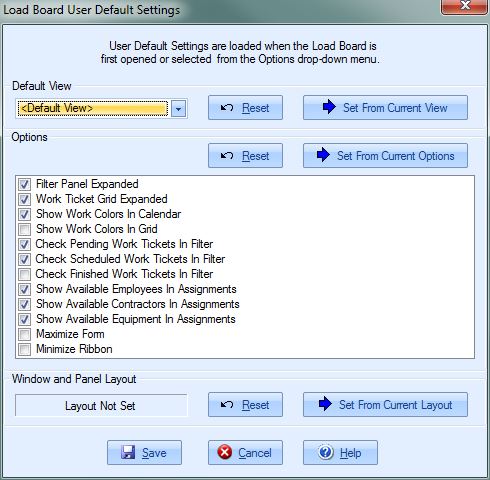
User Defaults are per-user settings that are loaded when the Load Board is first opened. You can also manually load the settings from the top "Tools" tab, open the Maintenance dropdown menu and select "Load User Default Settings".
Default View
Select the default Column View that will load when the Load Board opens.
[Reset] Press this button to reset the dropdown box to "Default View".
[Set From Current View] Press this button to set the dropdown box to the currently select View from the Load Board.
Options
[Reset] Press this button to reset to default options.
[Set From Current Options] Press this button to pull the options from the current Load Board.
Filter Panel Expanded This option will expand/collapse the panel titled "Filter" on the Load Board.
Work Ticket Grid Expanded This option will expand/collapse the panel titled "Work Tickets" located at the bottom of the Load Board.
Show Work Colors In Calendar Check this option to display Work Colors in the calendar portion of the Load Board. Otherwise, calendar appointments will be white with black text.
Show Work Colors In Grid Check this option to display Work Colors in the grid portion of the Load Board. Otherwise, the grid will use standard style formatting.
Check Pending Work Tickets In Filter This option will check/uncheck the "Pending" option at the bottom of the Load Board Filter. This affects whether you see work tickets marked as pending in your results.
Check Scheduled Work Tickets In Filter This option will check/uncheck the "Scheduled" option at the bottom of the Load Board Filter. This affects whether you see work tickets marked as scheduled in your results.
Check Finished Work Tickets In Filter This option will check/uncheck the "Finished" option at the bottom of the Load Board Filter. This affects whether you see work tickets marked as finished in your results.
Show Available Employees In Assignments This option will show/hide available employees when you are editing the Assignments windows.
Show Available Contractors In Assignments This option will show/hide available contractors when you are editing the Assignments windows.
Show Available Equipment In Assignments This option will show/hide available equipment (vehicles, etc.) when you are editing the Assignments windows.
Maximize Form This option will maximize the MoverBiz Dispatch Manager form.
Minimize Ribbon This option will minimize the MoverBiz Dispatch Manager form's ribbon. Ribbon is the name for the tabbed, "Office"-style menu at the top of the form.
Window and Panel Layout
These settings will save the position and size of the Assignments, Dates and Memo windows.
[Reset] Press this button to reset to position and size of the windows.
[Set From Current Layout] Press this button to pull the layout from the current Load Board.
[Save] Press this button to save the User Defaults and apply them to the Load Board.
[Cancel] Press this button to cancel any changes and return to the previous screen.
[Help] Press this button to call the Help screen.

