Help:DM1-MoverBiz Dispatch Manager: Difference between revisions
No edit summary |
added content |
||
| Line 2: | Line 2: | ||
{{Page title|MoverBiz Dispatch Manager}} | {{Page title|MoverBiz Dispatch Manager}} | ||
Check out our [[Help:DM1-MoverBiz Changelog|MoverBiz Changelog]] for the latest updates and bug fixes. | |||
The MoverBiz Dispatch Manager contains a set of tools built on .NET technology that give you more control of your move coordinating and dispatching. | |||
<!-- Check out our [[Help:DM1-MoverBiz Changelog|MoverBiz Changelog]] for the latest updates and bug fixes. --> | |||
[[File:DMS_MoverBiz_Dispatch_Manager.JPG|link=]] | [[File:DMS_MoverBiz_Dispatch_Manager.JPG|link=]] | ||
=== Home tab === | |||
'''[Exit]''' Press this button to close any open, tabbed windows and exit MoverBiz Dispatch Manager | |||
'''[Load Board]''' Press this button to open the [[Help:DM1-MoverBiz_Load_Board|MoverBiz Load Board]], a tool designed to help Dispatchers manage Work Tickets. | |||
'''[Big Board]''' Press this button to open the [[Help:DM1-MoverBiz_Big_Board|MoverBiz Big Board]], a tool designed to help Inter/Intrastate Dispatchers & Move Coordinators manage Company Job. | |||
'''[Reports]''' This drop-down menu contains all the dispatch reports that have been redeveloped in .NET: | |||
'''Total Hours - Employees''' | |||
'''Total Hours - Contractors''' | |||
'''Total Hours - Equipment''' | |||
'''Estimated Work - Daily''' | |||
'''Estimated Work - Summary''' | |||
'''Schedule By Day''' | |||
'''Schedule By Employee''' | |||
'''Schedule By Contractor''' | |||
'''Schedule By Equipment''' | |||
'''Military Tonnage By Carrier''' | |||
'''Military Booking Analysis''' | |||
'''Jobs In Warehouse''' | |||
'''New Jobs Received In Warehouse''' | |||
[[File:DMS_MoverBiz_Dispatch_Manager_Support_tab.JPG|link=]] | [[File:DMS_MoverBiz_Dispatch_Manager_Support_tab.JPG|link=]] | ||
=== Support tab === | |||
'''[Help]''' Press this button to call the help screen for the currently active, tabbed window. If no windows are open, then you are taken to this screen. | |||
You can also press the small help button in the upper right corner of the screen to the same effect. | |||
[[File:MainHelp.png|link=]] | |||
'''[About]''' Press this button to open the About screen with technical information about MoverBiz Dispatch Manager. | |||
'''[Direct Systems Support Webpage]''' Press this button to open the Direct Systems [[http://directsystems.com/support/ Support Webpage]]. | |||
'''[Bomgar Portal]''' Press this button to open the Direct Systems [[http://directsystems.bomgar.com/ Bomgar Portal]]. You will be asked by a support representative to press this button. | |||
Latest revision as of 13:17, 18 August 2014
The MoverBiz Dispatch Manager contains a set of tools built on .NET technology that give you more control of your move coordinating and dispatching.
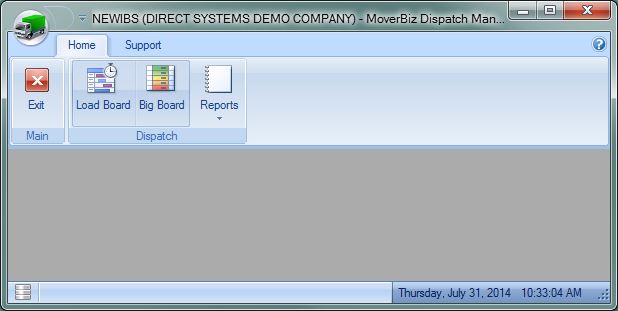
Home tab
[Exit] Press this button to close any open, tabbed windows and exit MoverBiz Dispatch Manager
[Load Board] Press this button to open the MoverBiz Load Board, a tool designed to help Dispatchers manage Work Tickets.
[Big Board] Press this button to open the MoverBiz Big Board, a tool designed to help Inter/Intrastate Dispatchers & Move Coordinators manage Company Job.
[Reports] This drop-down menu contains all the dispatch reports that have been redeveloped in .NET:
Total Hours - Employees
Total Hours - Contractors
Total Hours - Equipment
Estimated Work - Daily
Estimated Work - Summary
Schedule By Day
Schedule By Employee
Schedule By Contractor
Schedule By Equipment
Military Tonnage By Carrier
Military Booking Analysis
Jobs In Warehouse
New Jobs Received In Warehouse
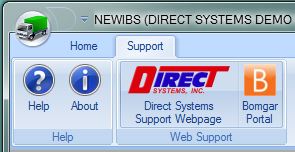
Support tab
[Help] Press this button to call the help screen for the currently active, tabbed window. If no windows are open, then you are taken to this screen. You can also press the small help button in the upper right corner of the screen to the same effect.
[About] Press this button to open the About screen with technical information about MoverBiz Dispatch Manager.
[Direct Systems Support Webpage] Press this button to open the Direct Systems [Support Webpage].
[Bomgar Portal] Press this button to open the Direct Systems [Bomgar Portal]. You will be asked by a support representative to press this button.

