Help:Common-Insert Edit Action: Difference between revisions
added frame |
added content |
||
| Line 2: | Line 2: | ||
{{Page title|Images - Add / Edit File Action}} | {{Page title|Images - Add / Edit File Action}} | ||
This screen allows you to add a new File Action or update an existing record. | |||
[[File:Common_Images_Add_Edit_File_Action.JPG|link=]] | [[File:Common_Images_Add_Edit_File_Action.JPG|link=]] | ||
'''Extension:''' Select an available file extension from this dropdown box. Extensions that are already attached to other File Action records will not show up in this list. To specify a default program to open images instead of the built-in [[Help:Common-Image_Viewer|Image Viewer]], select "Image File" from the dropdown. If you don't see Image File in the list then it is probably already attached to a File Action record. | |||
'''External App:''' Type the path or press the [[File:ViewButton.PNG|link=]] button to browse to an executable. This is the preferred program to use to open the specified extension. Leave this field blank and the file will be opened by the Operating System (Windows). | |||
{{Important tip|File actions are shared by all users so it is important to specify an executable that is accessible from the network. Selecting a local app for this field could cause issues or even errors.}} | |||
'''Wait For Exit:''' These options instruct the program on what to do after it has opened the file. Selecting "No" will make the program immediately return to the [[Help:Common-Images|Images]] screen. Selecting "Yes" will make the program wait for you to close the Image file before returning to the Images screen. Selecting "Prompt" will make the program prompt the user on how to proceed. | |||
[[File:AddButton.PNG|link=]] or [[File:SaveButton.PNG|link=]] Press this button to Insert or Update the file action in the system. If any validation rules need attention, you will be prompted with a red exclamation mark beside the offending field. | |||
[[File:CancelButton.PNG|link=]] Press this button to cancel and return to the previous screen. | |||
[[File:HelpButton.PNG|link=]] Press this button to call the Help Screen. | |||
Latest revision as of 20:55, 1 August 2014
This screen allows you to add a new File Action or update an existing record.
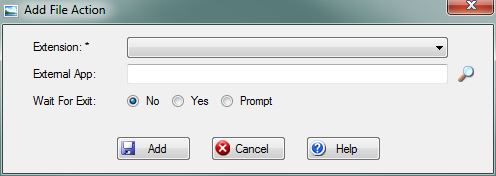
Extension: Select an available file extension from this dropdown box. Extensions that are already attached to other File Action records will not show up in this list. To specify a default program to open images instead of the built-in Image Viewer, select "Image File" from the dropdown. If you don't see Image File in the list then it is probably already attached to a File Action record.
External App: Type the path or press the File:ViewButton.PNG button to browse to an executable. This is the preferred program to use to open the specified extension. Leave this field blank and the file will be opened by the Operating System (Windows).

|
Important: File actions are shared by all users so it is important to specify an executable that is accessible from the network. Selecting a local app for this field could cause issues or even errors. |
Wait For Exit: These options instruct the program on what to do after it has opened the file. Selecting "No" will make the program immediately return to the Images screen. Selecting "Yes" will make the program wait for you to close the Image file before returning to the Images screen. Selecting "Prompt" will make the program prompt the user on how to proceed.
File:AddButton.PNG or File:SaveButton.PNG Press this button to Insert or Update the file action in the system. If any validation rules need attention, you will be prompted with a red exclamation mark beside the offending field.
File:CancelButton.PNG Press this button to cancel and return to the previous screen.
File:HelpButton.PNG Press this button to call the Help Screen.


