MoverBiz:Screenshots: Difference between revisions
From DirectWiki
Added Browse Shipment Screen |
Added all the Tabs with content |
||
| (36 intermediate revisions by 3 users not shown) | |||
| Line 1: | Line 1: | ||
__NOTITLE__ | |||
{{Page title|Dispatch Manager Screenshots}} | {{Page title|MoverBiz Dispatch Manager Screenshots}} | ||
<br/> | |||
The following screenshots will provide an exclusive sneak peek at the new MoverBiz Dispatch Manager. With a Microsoft Visual Basic .NET front end and a Microsoft SQL Server 2008 back end, this module is the powerhouse of our move management software. Since we are still in production, some shots maybe be incomplete or display test data. | The following screenshots will provide an exclusive sneak peek at the new MoverBiz Dispatch Manager. With a Microsoft Visual Basic .NET front end and a Microsoft SQL Server 2008 back end, this module is the powerhouse of our move management software. Since we are still in production, some shots maybe be incomplete or display test data. | ||
<br/><br/> | |||
{{Important tip|Please [mailto:sales@directsystems.com contact us] if you would like to provide feedback, need additional information or want to schedule demo of the new Dispatch Manager.}} | |||
[[File:MoverBizLogo.png|link=]] | |||
__TOC__ | __TOC__ | ||
== Modern Interface == | == Modern Interface == | ||
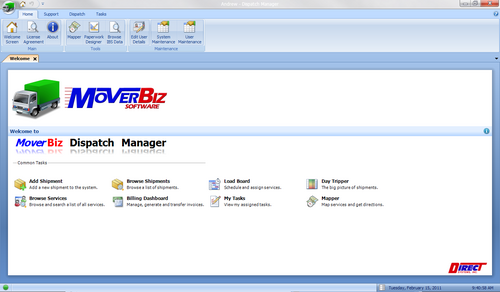
* All of the MoverBiz modules sport a sleek and modern user interface. The main form uses the familiar Office 2007 Ribbon UI, formally known as Fluent, with a main menu button that provides access to every function in the system. | |||
[[File:WelcomeScreenReflectiveLogo.png|500px|link=MoverBiz:Screenshots-Modern User Interface]] | |||
<br/><br/> | |||
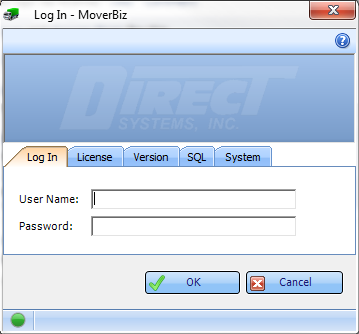
* MoverBiz is true multi-company. Log in once to gain permission based access to all of the companies and branches within the enterprise. Sensitive user information is also password protected after log in to provide additional security. | |||
[[File:LogIn.png|400px|link=MoverBiz:Screenshots-Multi Company Functionality]] | |||
<br/><br/> | |||
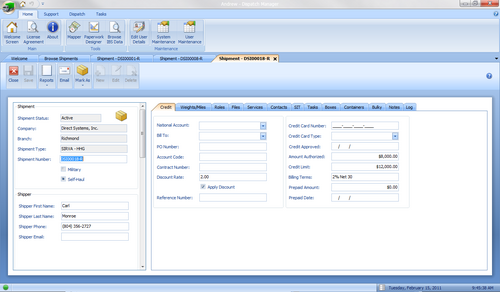
* New documents open as tabs instead of floating windows and allows users to have multiples documents open at once. Navigate between documents with a single click. | |||
[[File:View Shipment Tabs.png|500px|link=MoverBiz:Screenshots-Easy Document Navigation]] | |||
<br/><br/> | |||
* MoverBiz windows may be “docked” anywhere within the main window. This allows Move Coordinators, Customer Service Agents, Dispatchers or anyone else to view and edit data while referencing another window at the same time. | |||
[[File:DockedTabs.png|500px|link=MoverBiz:Screenshots-Dockable Windows]] | |||
<br/><br/> | |||
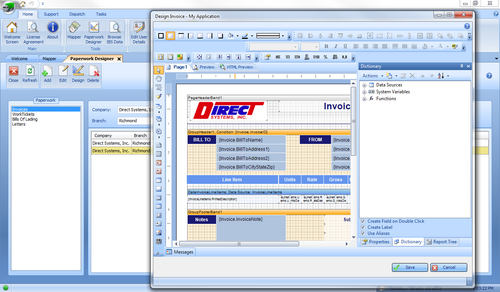
* Design custom paperwork including invoices, work tickets and bills of lading. | |||
[[File:PaperworkDesigner.png|500px|link=MoverBiz:Screenshots-User Defined Paperwork]] | |||
== Shipments == | == Shipments == | ||
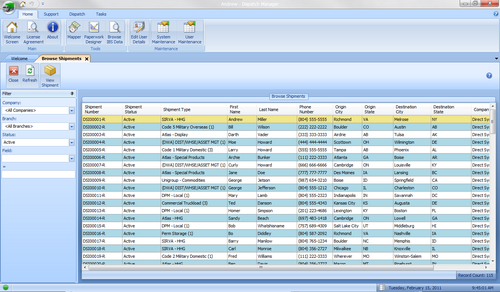
== Load Board == | * The Browse Shipment screen allows MoverBiz users to quickly locate a shipment. Each of the column headers in the Browse screen allows for sorting ascending and descending. Additionally, filters at the top of the screen allow users to narrow the results based on criteria of their choosing. | ||
[[File:BrowseShipment.png|500px|link=MoverBiz:Screenshots-Browse Shipments]] | |||
<br/><br/> | |||
* Creating a new shipment in MoverBiz is a snap. Simply select the Shipment Type, Company and Branch from user-defined dropdowns, enter the customer name and phone number and that’s it! Also, utilizing Direct’s unique Task Manager when creating a new shipment will automatically assign tasks to designated personnel. Stay on top of your Customer relations with the Task Manager. | |||
[[File:AddShipment.png|400px|link=MoverBiz:Screenshots-Quickly Add Shipments]] | |||
<br/><br/> | |||
* Billing Tab - This tab contains customer payment information; who is paying and how. It can capture credit card information if you wish it to. | |||
[[File:BillingTab.png|500px|link=MoverBiz:Screenshots-Billing Tab]] | |||
<br/><br/> | |||
* Military Tab - This tab only displays if you are viewing a military shipment. Here you can capture all pertinent information required for military paperwork that isn’t captured elsewhere. | |||
[[File:MilitaryTab.png|500px|link=MoverBiz:Screenshots-Military Tab]] | |||
<br/><br/> | |||
* Weights and Miles Tab - There are fields for estimated and actual weights, miles, line haul, pieces and cubes. There are also fields for a re-weight and billing and authorized weight. | |||
[[File:WeightsMilesTab.png|500px|link=MoverBiz:Screenshots-Weights and Miles Tab]] | |||
<br/><br/> | |||
* Roles Tab - Here you can identify the various players on a shipment from van line agencies involved to the personnel responsible. | |||
[[File:RolesTab.png|500px|link=MoverBiz:Screenshots-Roles Tab]] | |||
<br/><br/> | |||
* Files Tab - Attach electronic documents to a shipment for lightning fast retrieval. No more sifting through boxes in the warehouse trying to find that misplaced invoice. Our “Add Files” interface makes it a breeze to select an existing file or scan a document right into the system. Email files directly from the shipment details screen. | |||
[[File:FilesTab.png|500px|link=MoverBiz:Screenshots-Electronic File Storage]] | |||
<br/><br/> | |||
* Services Tab - This is where you indicate what services need to be performed on the shipment such as Packing, Loading and Delivery. There is room for an unlimited number of services. | |||
[[File:ServicesTab.png|500px|link=MoverBiz:Screenshots-Services Tab]] | |||
<br/><br/> | |||
* Addresses Tab - Here you can store all address and phone information for anyone involved in this shipment. | |||
[[File:AddressesTab.png|500px|link=MoverBiz:Screenshots-Addresses Tab]] | |||
<br/><br/> | |||
* SIT Tab - This is where you can indicate if the shipment is in SIT and if so where. It also captures dates and days authorized so shipments don’t stay longer than they should. | |||
[[File:SITTab.png|500px|link=MoverBiz:Screenshots-SIT Tab]] | |||
<br/><br/> | |||
* Tasks Tab - Typically Tasks would be created when you create the shipment to make sure you and your staff follows through on all the confirmation and status calls you need to make to ensure quality service. | |||
[[File:TasksTab.png|500px|link=MoverBiz:Screenshots-Tasks Tab]] | |||
<br/><br/> | |||
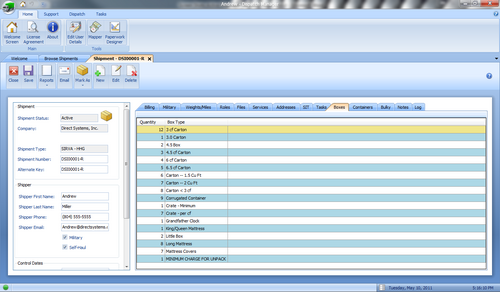
* Boxes Tab - Here you can indicate how many of what kind of box needs to be taken on this shipment based on the survey. | |||
[[File:BoxesTab.png|500px|link=MoverBiz:Screenshots-Boxes Tab]] | |||
<br/><br/> | |||
* Containers Tab - You can list any and all containers that house the shipment on this tab. | |||
[[File:ContainersTab.png|500px|link=MoverBiz:Screenshots-Containers Tab]] | |||
<br/><br/> | |||
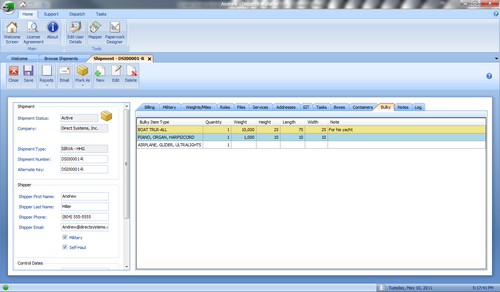
* Bulky Items Tab - You can list any Bulky articles you want to keep track of on this tab. | |||
[[File:BulkyTab.png|500px|link=MoverBiz:Screenshots-Bulky Items Tab]] | |||
<br/><br/> | |||
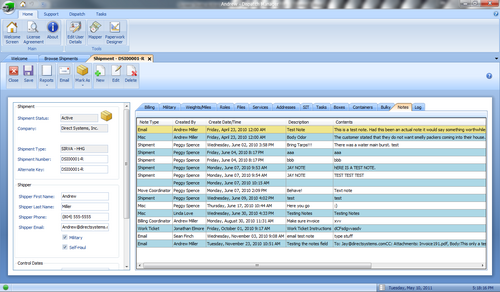
* Notes Tab - Here you can keep track of all correspondence had with anyone involved with the shipment. Phone calls, emails and any other conversations can be recorded here so record is kept of who said what. | |||
[[File:NotesTab.png|500px|link=MoverBiz:Screenshots-Notes Tab]] | |||
<br/><br/> | |||
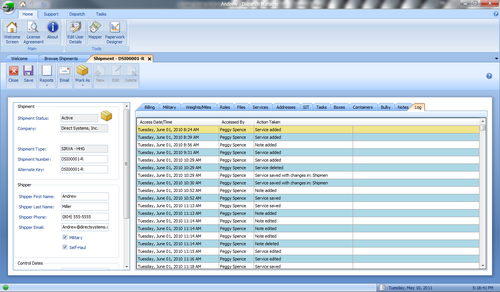
* Log Tab - This tab keeps track of any saved changes to a shipment record, who made them and when for auditing purposes. | |||
[[File:LogTab.png|500px|link=MoverBiz:Screenshots-Log Tab]] | |||
<br/><br/> | |||
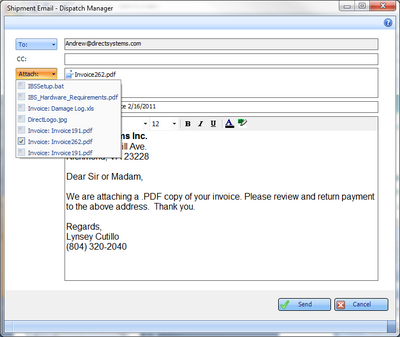
* Select from multiple e-mail addresses and attach electronic documents that are saved to the shipment such as invoices and work tickets. Fully configurable SMTP settings allow for use of popular web mail clients like Gmail or Yahoo. | |||
[[File:ShipmentEmail.png|400px|link=MoverBiz:Screenshots-Full E-mail Capabilities]] | |||
== Services == | |||
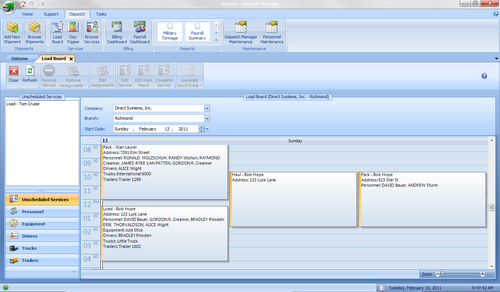
*The MoverBiz Load Board has a modern look and feel to it as well as an easy to use drag and drop interface! View a single day for a snapshot of the company workload. Generate custom work tickets directly from the Load Board. | |||
[[File:LoadBoard.png|500px|link=MoverBiz:Screenshots-Load Board]] | |||
<br/><br/> | |||
*Once a service has been completed, recording or changing the personnel hours can be done with just a few clicks. | |||
[[File:CompleteService.png|400px|link=MoverBiz:Screenshots-Hours of Service]] | |||
<br/><br/> | |||
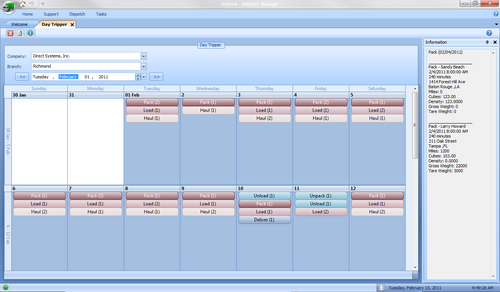
*Our “Day Tripper” is a read-only monthly calendar displaying an overview of all the work in the pipeline. Services are color-coded and grouped by type. | |||
[[File:ViewOnlyLoadBoard.png|500px|link=MoverBiz:Screenshots-Monthly Job Summary]] | |||
<br/><br/> | |||
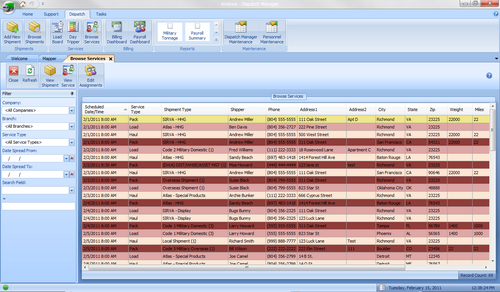
*View all your work load for a single day or a date spread. Browse, sort and use the filter to narrow down your results. Services are color coded based on service type for visual recognition. | |||
[[File:BrowseServices.png|500px|link=MoverBiz:Screenshots-Browse Services]] | |||
== Billing == | == Billing == | ||
*The Billing Dashboard serves as a hub for the Billing Coordinator to monitor all active shipments and to manage invoices. Generate invoices from custom formats, save electronically in one of 20 different file formats, and send via e-mail. | |||
[[File:ViewBillingInfo.png|500px|link=MoverBiz:Screenshots-Billing Dashboard]] | |||
<br/><br/> | |||
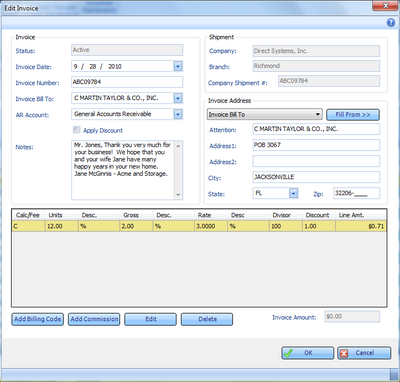
*The Edit Invoice screen is laid out in a clean and concise manner. From here, the Billing Coordinator can quickly and easily add billing charges and commission charges. The invoice address can be sent to a number of different locations and can be filled in with 2 clicks, reducing data entry and saving time. The shipment screen may be opened right next to the Invoice screen for instant reference. | |||
[[File:Editinvoice.png |400px|link=MoverBiz:Screenshots-Efficient Invoicing]] | |||
== | |||
== Mapper == | |||
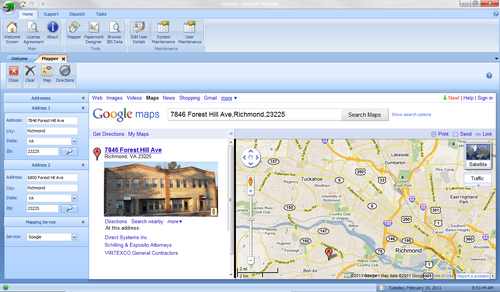
*Map service locations and get multiple segment directions using either Google Maps or Mapquest. Print out a copy of the map or save it to the shipment files where it can then be emailed to the driver. | |||
[[File:Mapper.png|500px|link=MoverBiz:Screenshots-Mapping and Directions]] | |||
== Task Manager == | == Task Manager == | ||
*The Task Supervisor Dashboard provides a quick overview of all tasks in the system and allows for the assignment of tasks to company personnel. For user, the Task Manager serves as a “To Do” list ensuring that things don’t “fall through the cracks”. | |||
= | [[File:TaskDashboard.png|500px|link=MoverBiz:Screenshots-Manage Multiple Tasks]] | ||
Latest revision as of 21:22, 10 May 2011
MoverBiz Dispatch Manager Screenshots
The following screenshots will provide an exclusive sneak peek at the new MoverBiz Dispatch Manager. With a Microsoft Visual Basic .NET front end and a Microsoft SQL Server 2008 back end, this module is the powerhouse of our move management software. Since we are still in production, some shots maybe be incomplete or display test data.

|
Important: Please contact us if you would like to provide feedback, need additional information or want to schedule demo of the new Dispatch Manager. |

Modern Interface
- All of the MoverBiz modules sport a sleek and modern user interface. The main form uses the familiar Office 2007 Ribbon UI, formally known as Fluent, with a main menu button that provides access to every function in the system.
- MoverBiz is true multi-company. Log in once to gain permission based access to all of the companies and branches within the enterprise. Sensitive user information is also password protected after log in to provide additional security.
- New documents open as tabs instead of floating windows and allows users to have multiples documents open at once. Navigate between documents with a single click.
- MoverBiz windows may be “docked” anywhere within the main window. This allows Move Coordinators, Customer Service Agents, Dispatchers or anyone else to view and edit data while referencing another window at the same time.

- Design custom paperwork including invoices, work tickets and bills of lading.
Shipments
- The Browse Shipment screen allows MoverBiz users to quickly locate a shipment. Each of the column headers in the Browse screen allows for sorting ascending and descending. Additionally, filters at the top of the screen allow users to narrow the results based on criteria of their choosing.
- Creating a new shipment in MoverBiz is a snap. Simply select the Shipment Type, Company and Branch from user-defined dropdowns, enter the customer name and phone number and that’s it! Also, utilizing Direct’s unique Task Manager when creating a new shipment will automatically assign tasks to designated personnel. Stay on top of your Customer relations with the Task Manager.

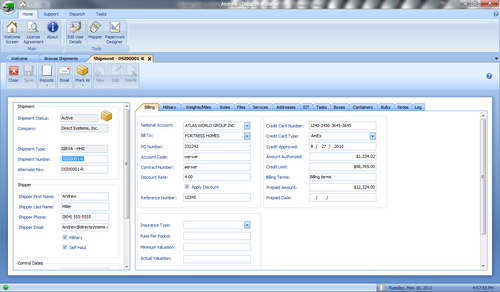
- Billing Tab - This tab contains customer payment information; who is paying and how. It can capture credit card information if you wish it to.
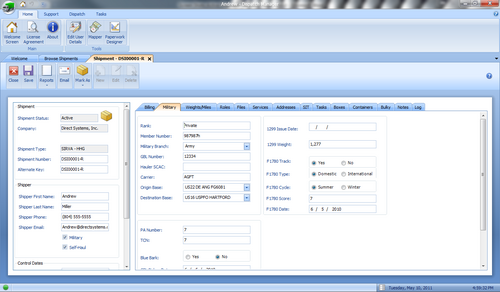
- Military Tab - This tab only displays if you are viewing a military shipment. Here you can capture all pertinent information required for military paperwork that isn’t captured elsewhere.
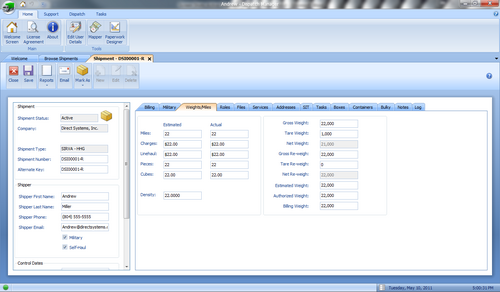
- Weights and Miles Tab - There are fields for estimated and actual weights, miles, line haul, pieces and cubes. There are also fields for a re-weight and billing and authorized weight.
- Roles Tab - Here you can identify the various players on a shipment from van line agencies involved to the personnel responsible.

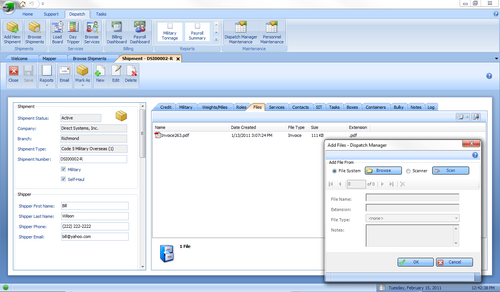
- Files Tab - Attach electronic documents to a shipment for lightning fast retrieval. No more sifting through boxes in the warehouse trying to find that misplaced invoice. Our “Add Files” interface makes it a breeze to select an existing file or scan a document right into the system. Email files directly from the shipment details screen.
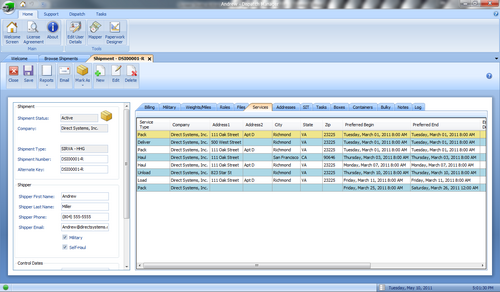
- Services Tab - This is where you indicate what services need to be performed on the shipment such as Packing, Loading and Delivery. There is room for an unlimited number of services.
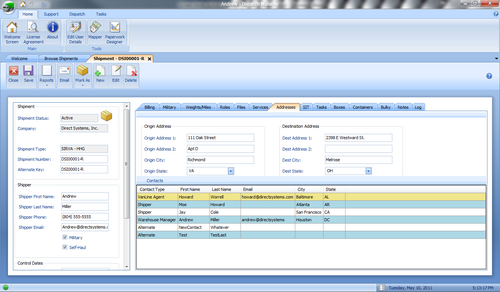
- Addresses Tab - Here you can store all address and phone information for anyone involved in this shipment.
- SIT Tab - This is where you can indicate if the shipment is in SIT and if so where. It also captures dates and days authorized so shipments don’t stay longer than they should.

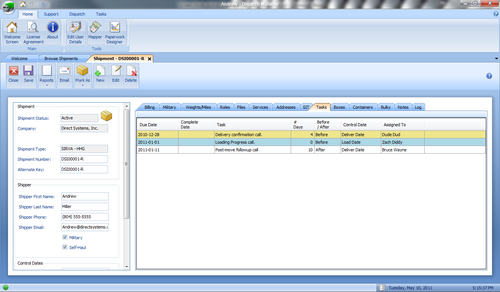
- Tasks Tab - Typically Tasks would be created when you create the shipment to make sure you and your staff follows through on all the confirmation and status calls you need to make to ensure quality service.
- Boxes Tab - Here you can indicate how many of what kind of box needs to be taken on this shipment based on the survey.
- Containers Tab - You can list any and all containers that house the shipment on this tab.

- Bulky Items Tab - You can list any Bulky articles you want to keep track of on this tab.
- Notes Tab - Here you can keep track of all correspondence had with anyone involved with the shipment. Phone calls, emails and any other conversations can be recorded here so record is kept of who said what.
- Log Tab - This tab keeps track of any saved changes to a shipment record, who made them and when for auditing purposes.
- Select from multiple e-mail addresses and attach electronic documents that are saved to the shipment such as invoices and work tickets. Fully configurable SMTP settings allow for use of popular web mail clients like Gmail or Yahoo.
Services
- The MoverBiz Load Board has a modern look and feel to it as well as an easy to use drag and drop interface! View a single day for a snapshot of the company workload. Generate custom work tickets directly from the Load Board.
- Once a service has been completed, recording or changing the personnel hours can be done with just a few clicks.

- Our “Day Tripper” is a read-only monthly calendar displaying an overview of all the work in the pipeline. Services are color-coded and grouped by type.
- View all your work load for a single day or a date spread. Browse, sort and use the filter to narrow down your results. Services are color coded based on service type for visual recognition.
Billing
- The Billing Dashboard serves as a hub for the Billing Coordinator to monitor all active shipments and to manage invoices. Generate invoices from custom formats, save electronically in one of 20 different file formats, and send via e-mail.

- The Edit Invoice screen is laid out in a clean and concise manner. From here, the Billing Coordinator can quickly and easily add billing charges and commission charges. The invoice address can be sent to a number of different locations and can be filled in with 2 clicks, reducing data entry and saving time. The shipment screen may be opened right next to the Invoice screen for instant reference.
Mapper
- Map service locations and get multiple segment directions using either Google Maps or Mapquest. Print out a copy of the map or save it to the shipment files where it can then be emailed to the driver.
Task Manager
- The Task Supervisor Dashboard provides a quick overview of all tasks in the system and allows for the assignment of tasks to company personnel. For user, the Task Manager serves as a “To Do” list ensuring that things don’t “fall through the cracks”.


